2. Concepts and Interface
2.1 Existing Studies and New Studies
In WRIMS 3 GUI, a study is typically represented as a project in Project Explorer.
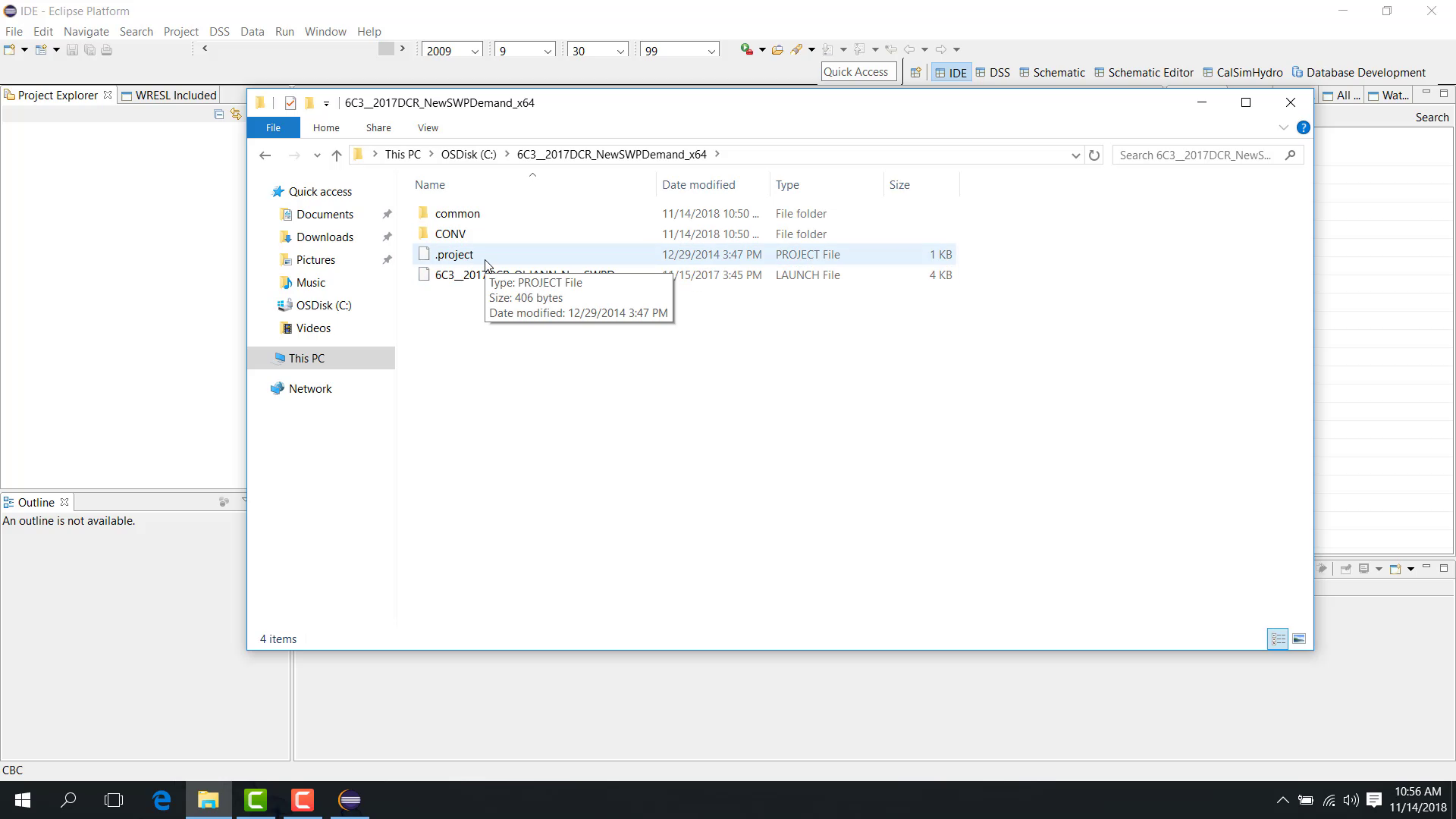
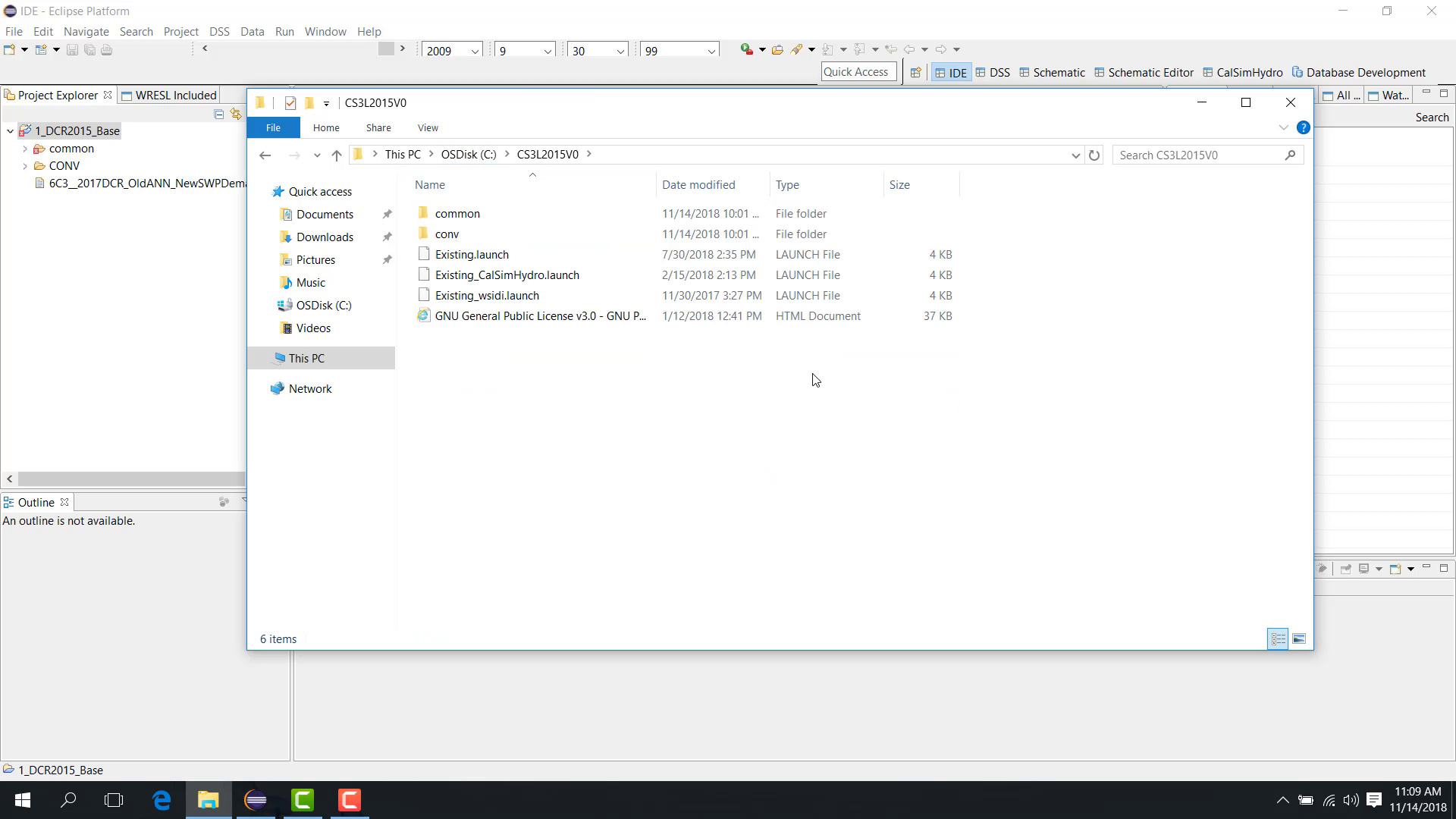
An existing study is a study folder that has already been imported into WRIMS 3 and contains a
.projectfile in its main folder.A new study is a study folder that has not yet been imported into WRIMS 3 GUI and therefore does not contain a
.projectfile.
In practice, a study without a .project file is treated as a new study. After it has been loaded once, WRIMS 3 GUI creates a .project file and the study is then treated as an existing study from the GUI perspective.
The examples below illustrate the distinction.
An existing study folder
A new study folder
2.2 Launch Files and Run Modes
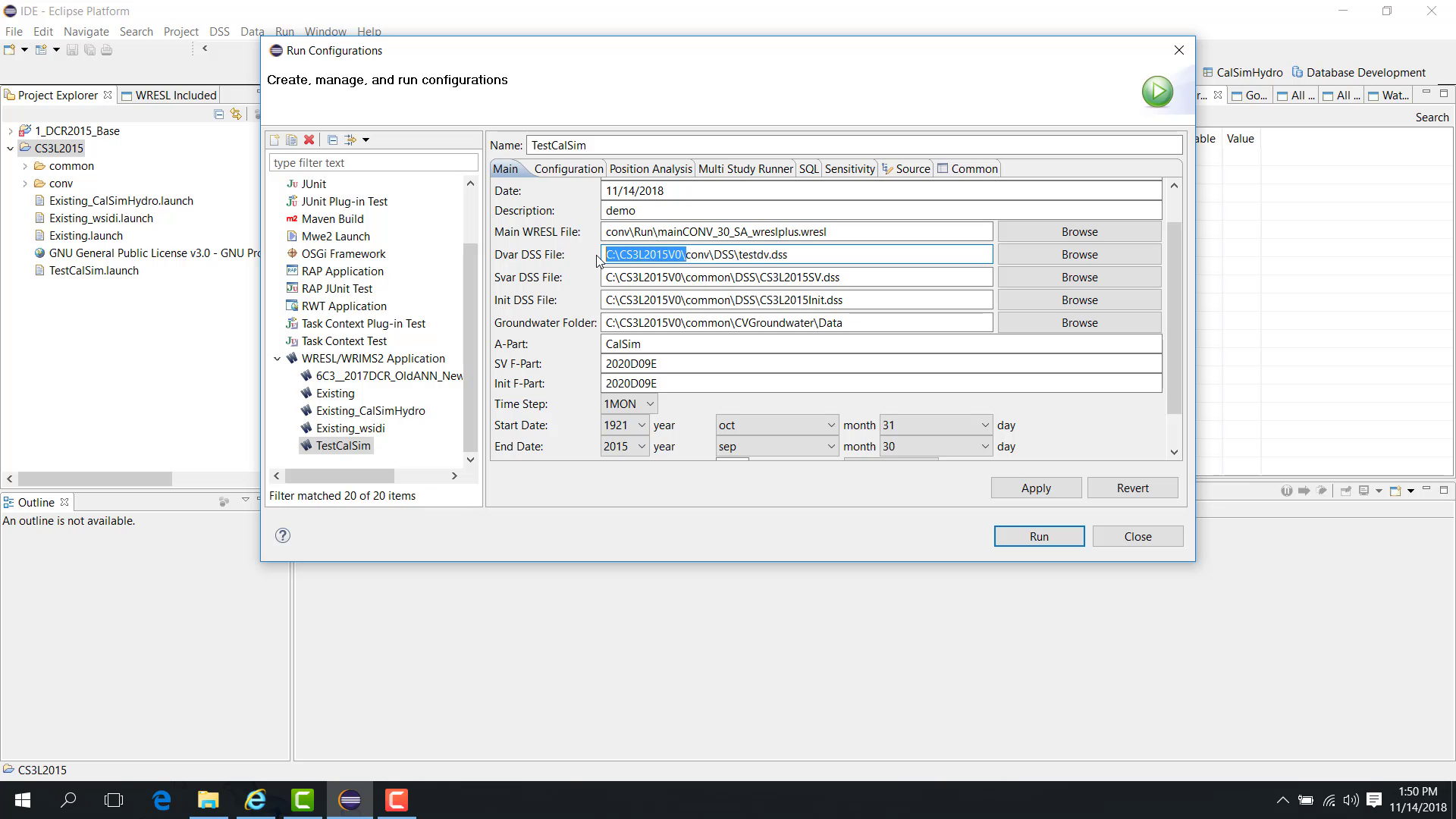
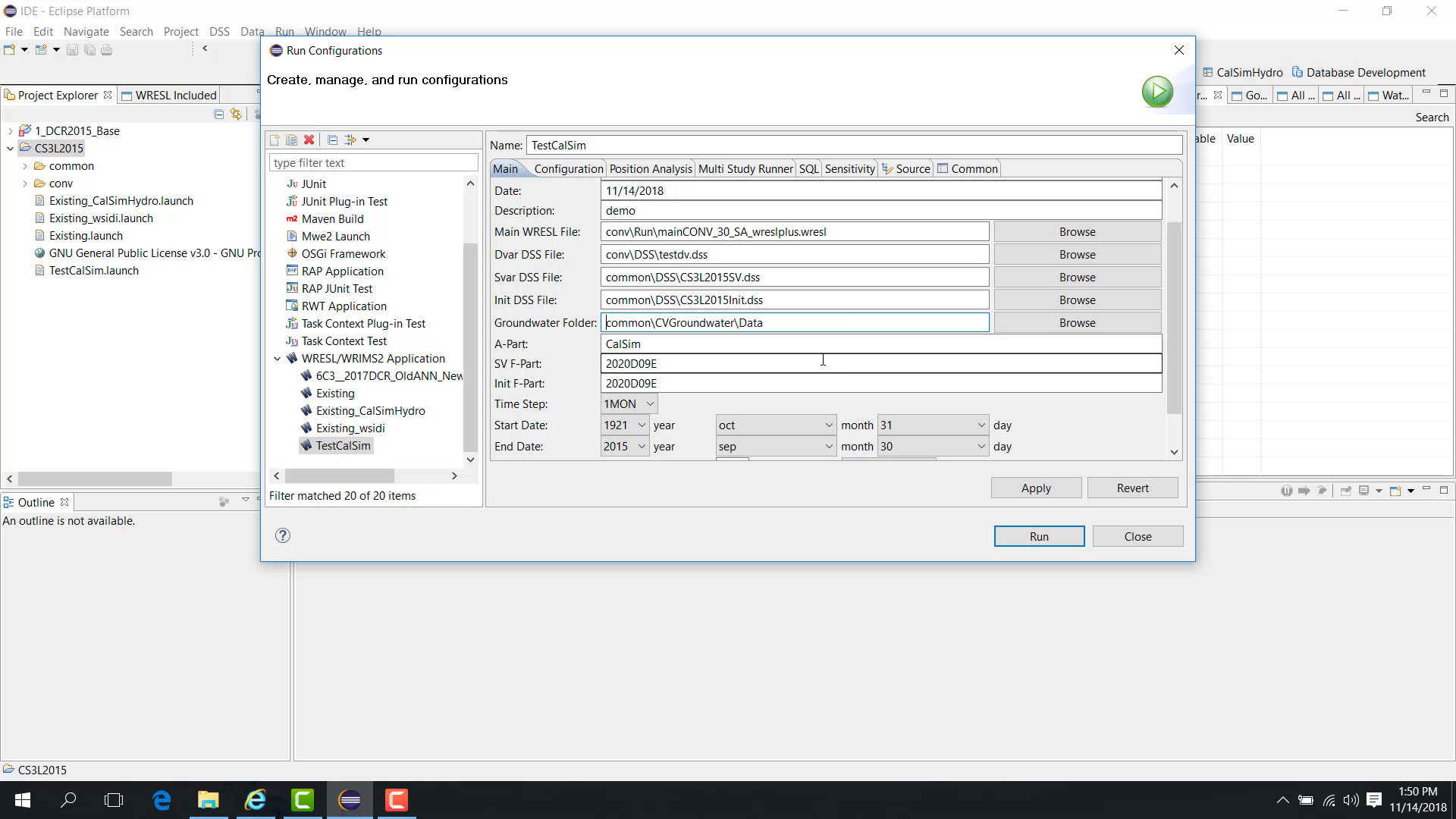
A launch file stores the configuration used to run or debug a study.
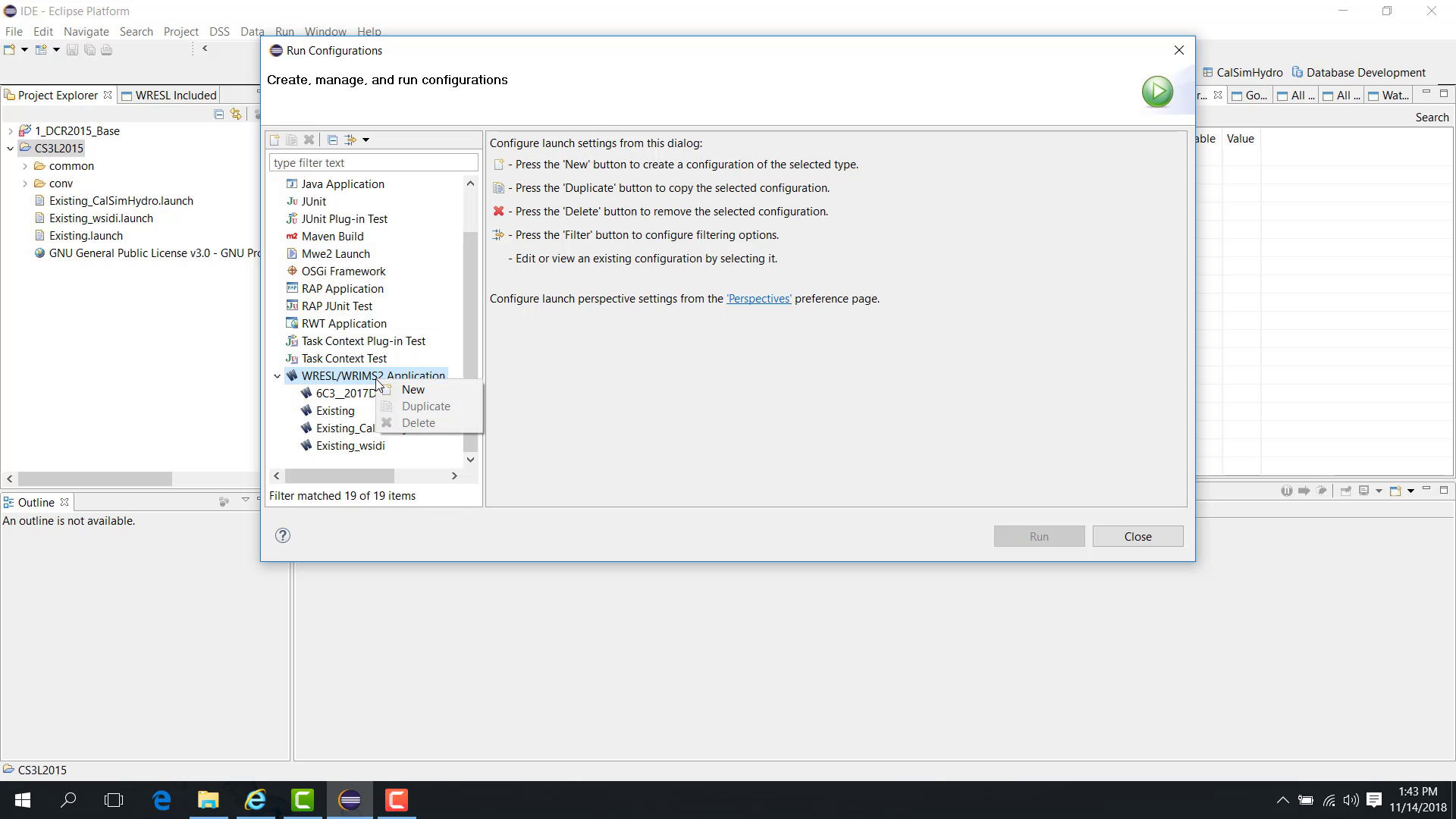
For portability, launch files are easier to manage when they are saved with the study as a Shared File and when referenced files use relative paths instead of absolute paths.
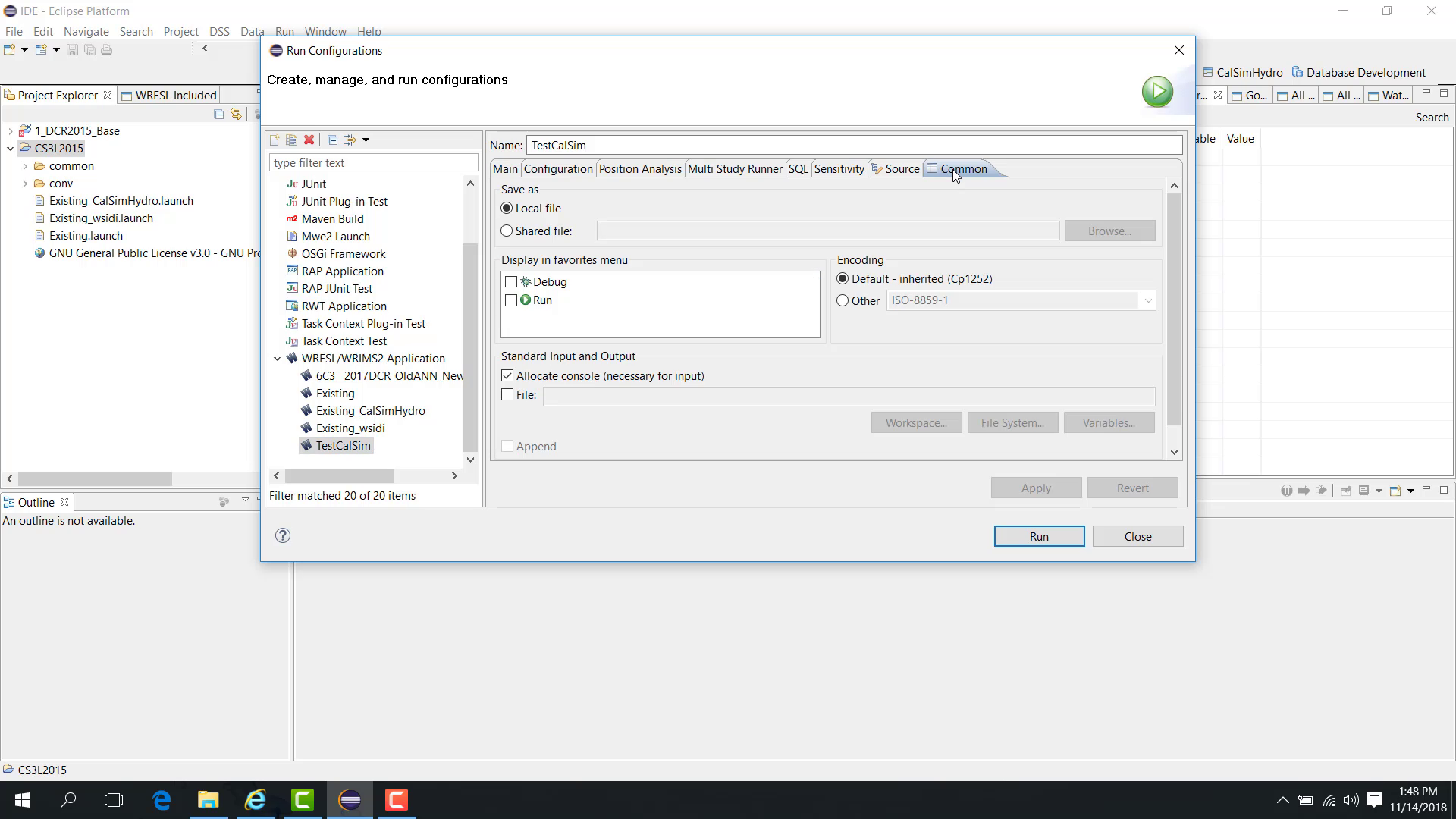
The following images show the launch-configuration context and the storage and path choices that matter most.
Run vs Debug
The same launch configuration can be used in either Run mode or Debug mode. As described in the previous chapter, you can open launch settings from either:
Debug As > Debug Configuration
Run As > Run Configuration
Selecting Debug starts the model in Debug mode.
Once the model is running, you can pause it during a cycle and inspect variable values from the file currently open in the editor.
Run executes the study continuously at normal speed.
Debug allows the study to be paused so that variables, goals, and model behavior can be inspected during execution.
2.3 Variable and Goal Views
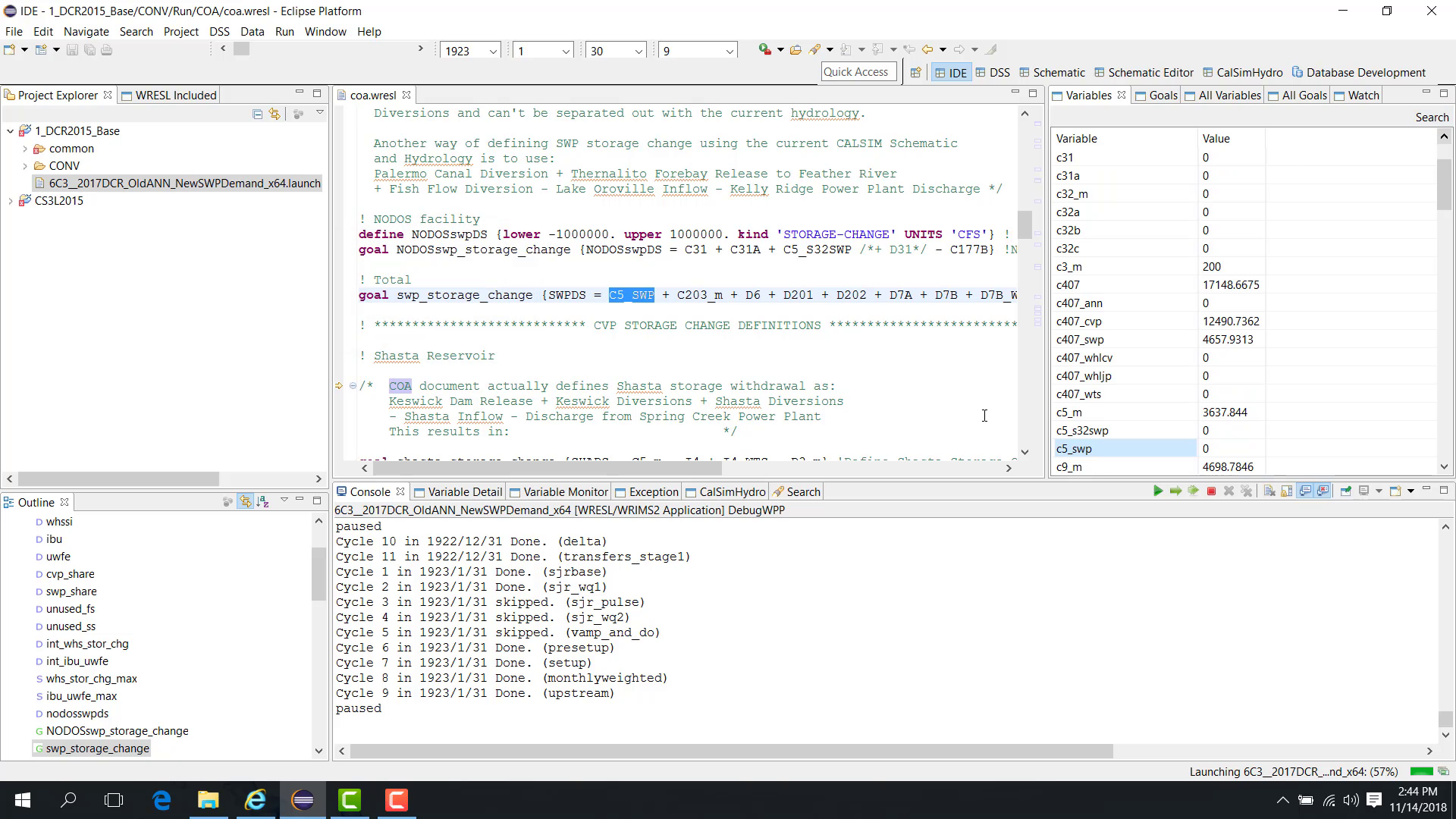
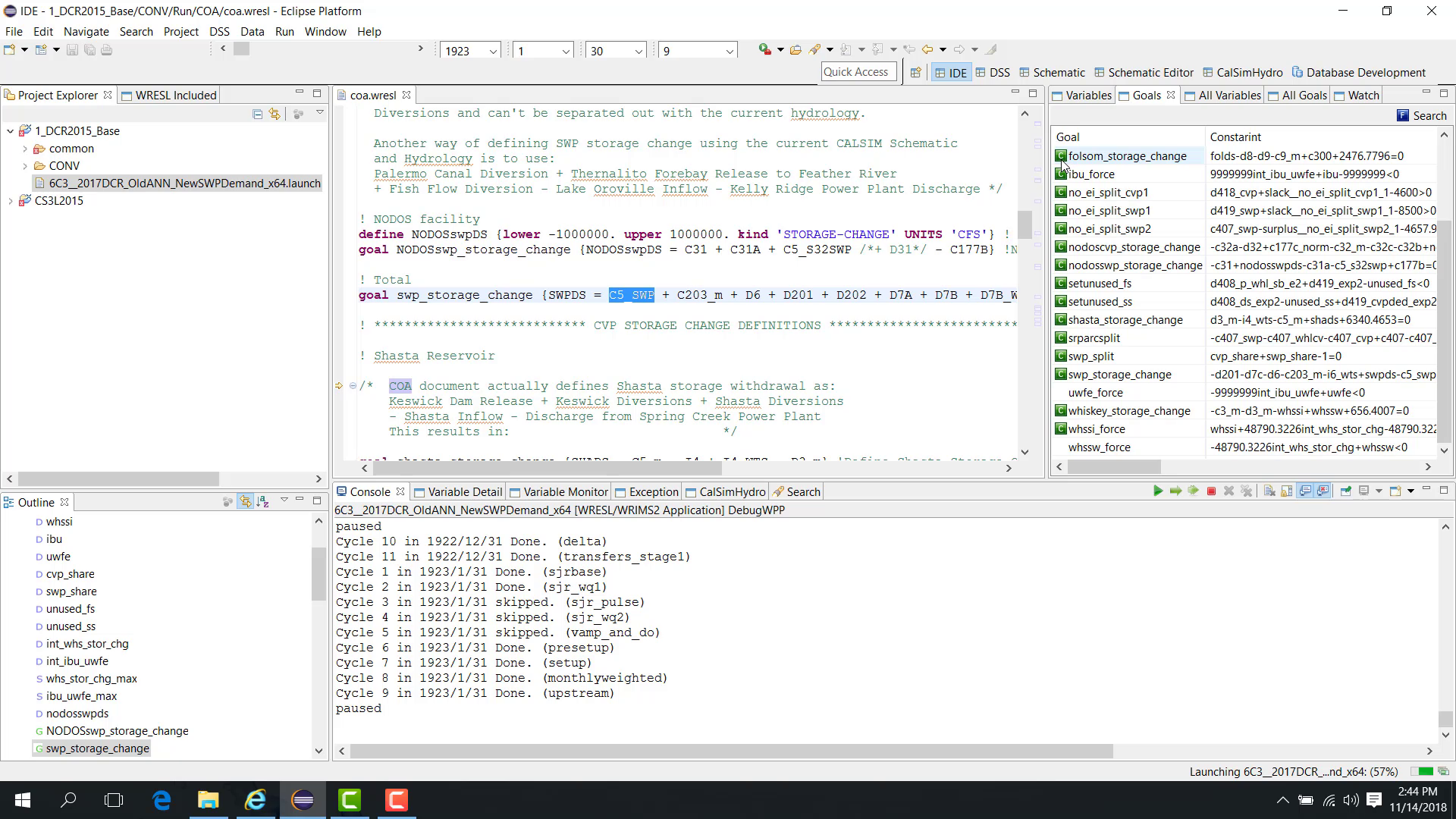
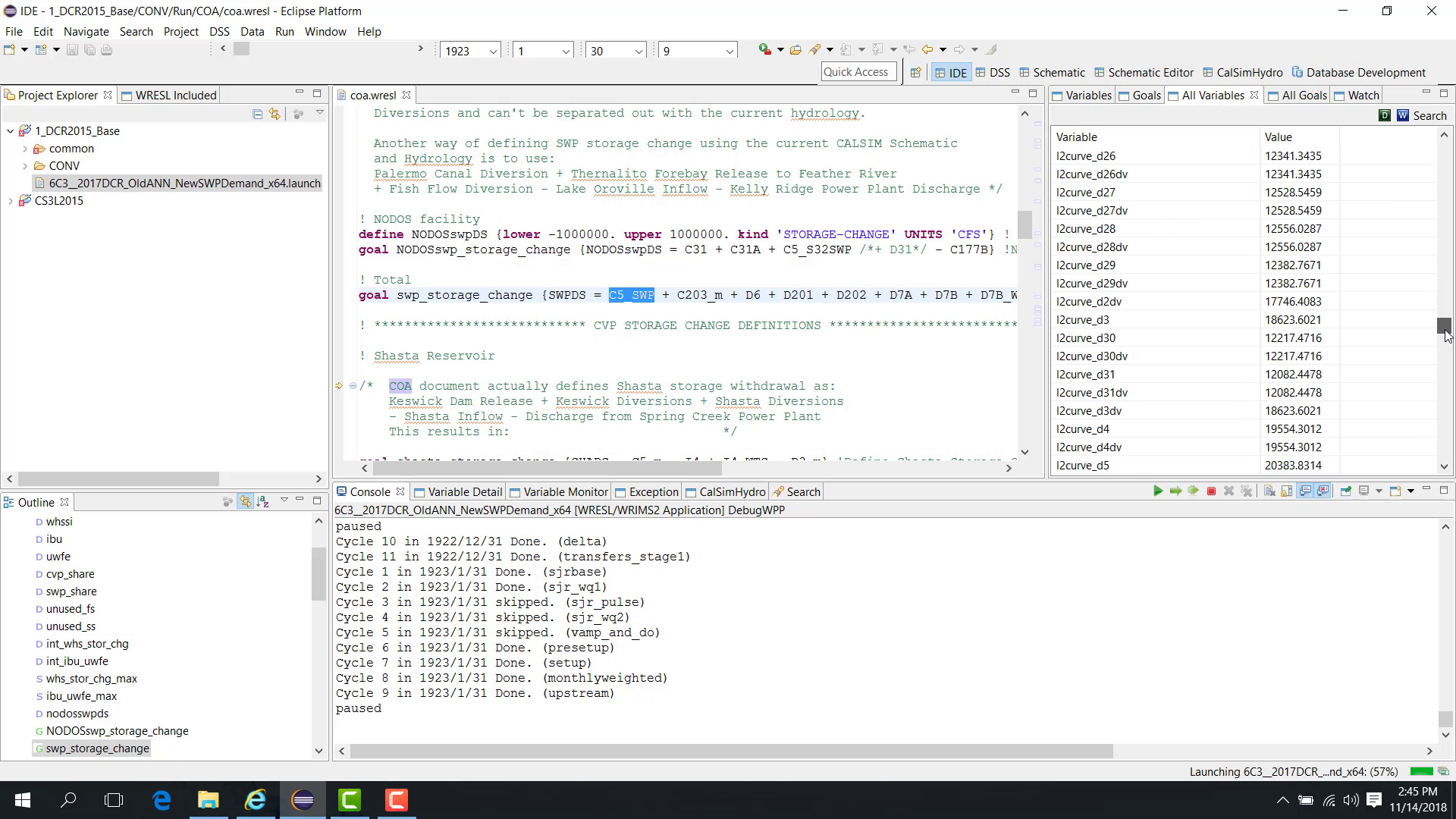
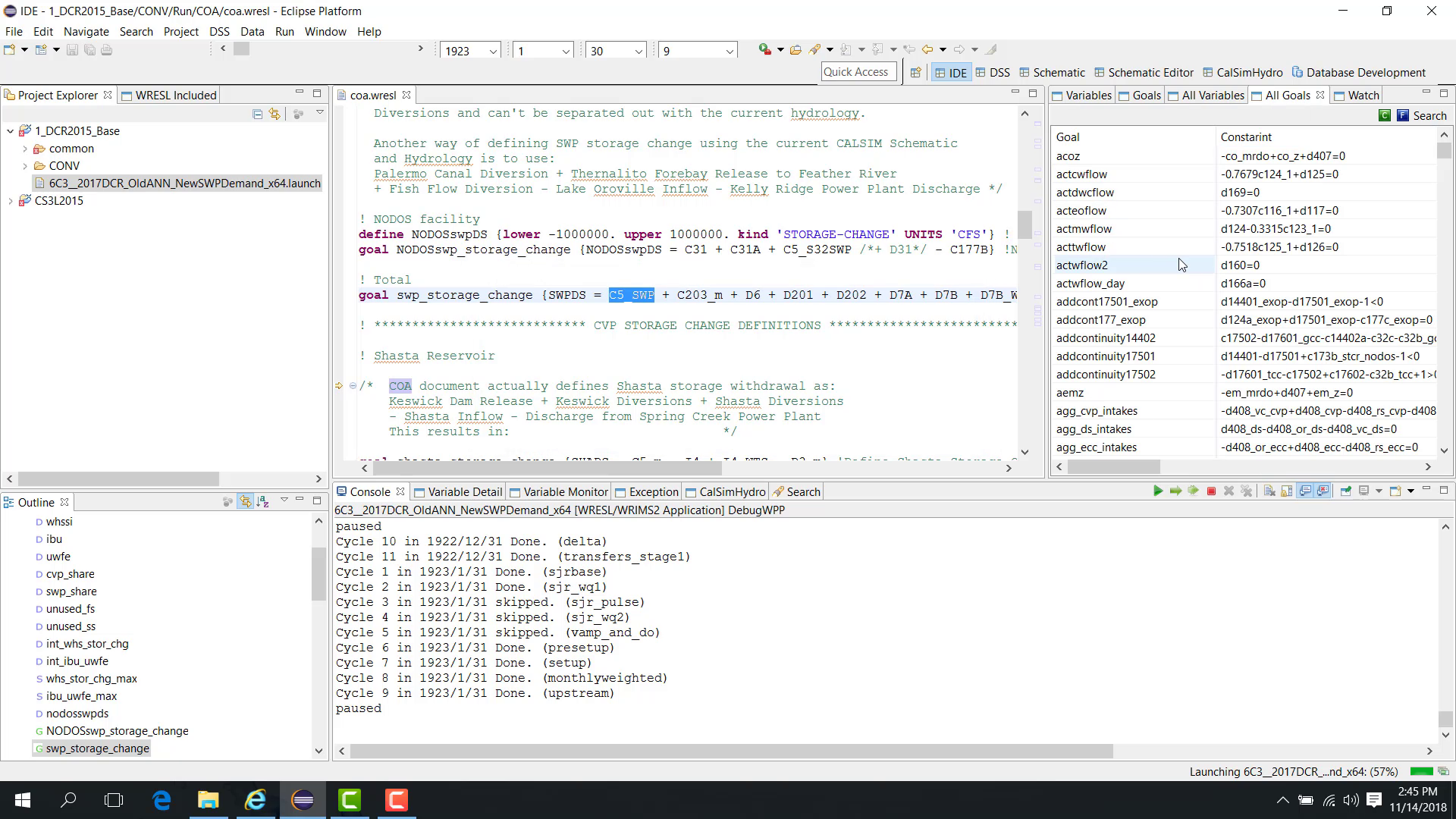
When a study is paused in Debug mode, WRIMS 3 GUI provides both file-specific views and model-wide views.
Variables and Goal View depend on the file currently open in the editor.
All Variables and All Goals show the full model at the current time step and cycle.
This distinction is important when interpreting paused results, because a file can be open in the editor even when it is not active in the current cycle.
The following images illustrate the main views used during paused inspection.
2.4 Controlling Goals and Goal Tolerance
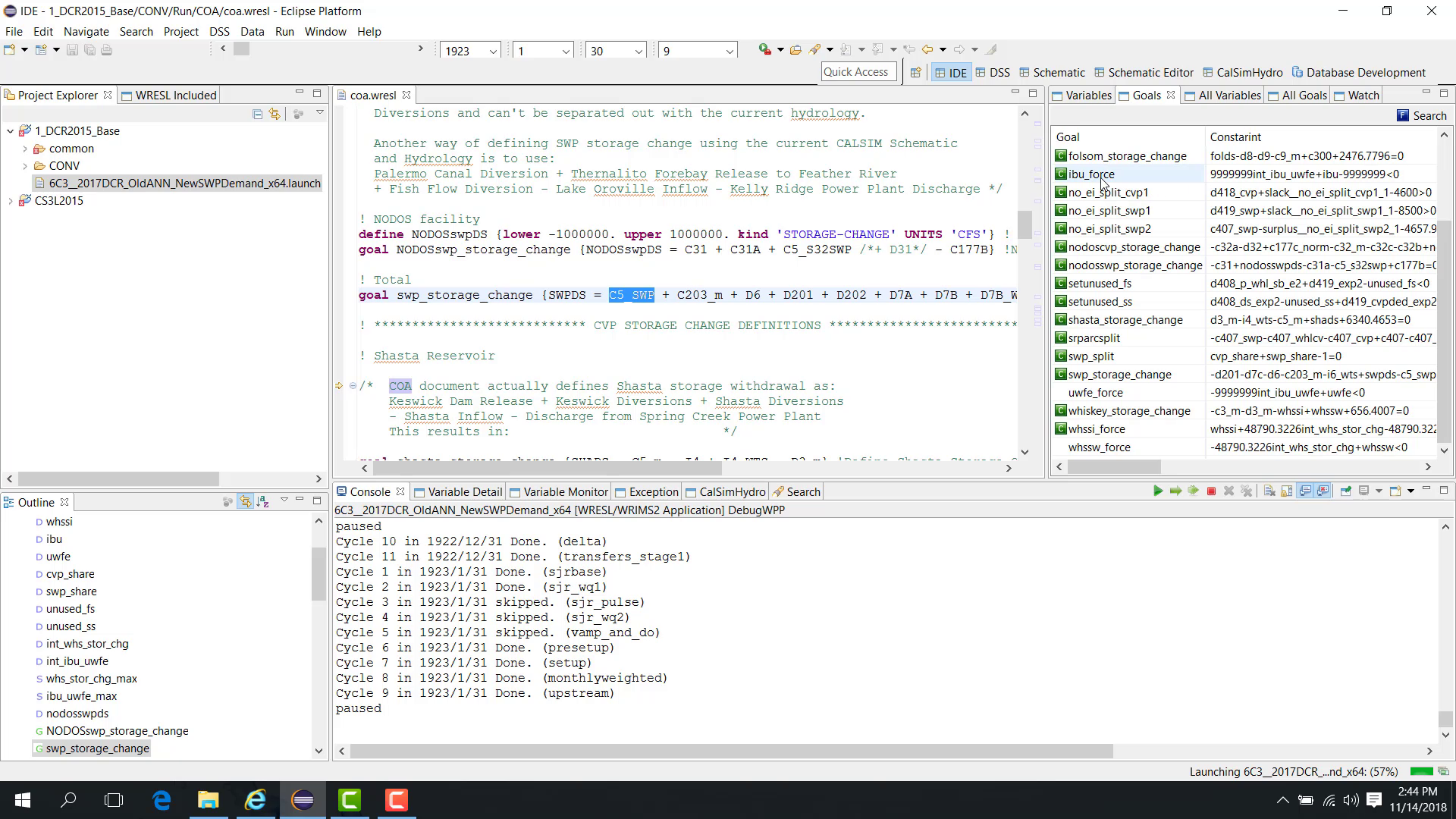
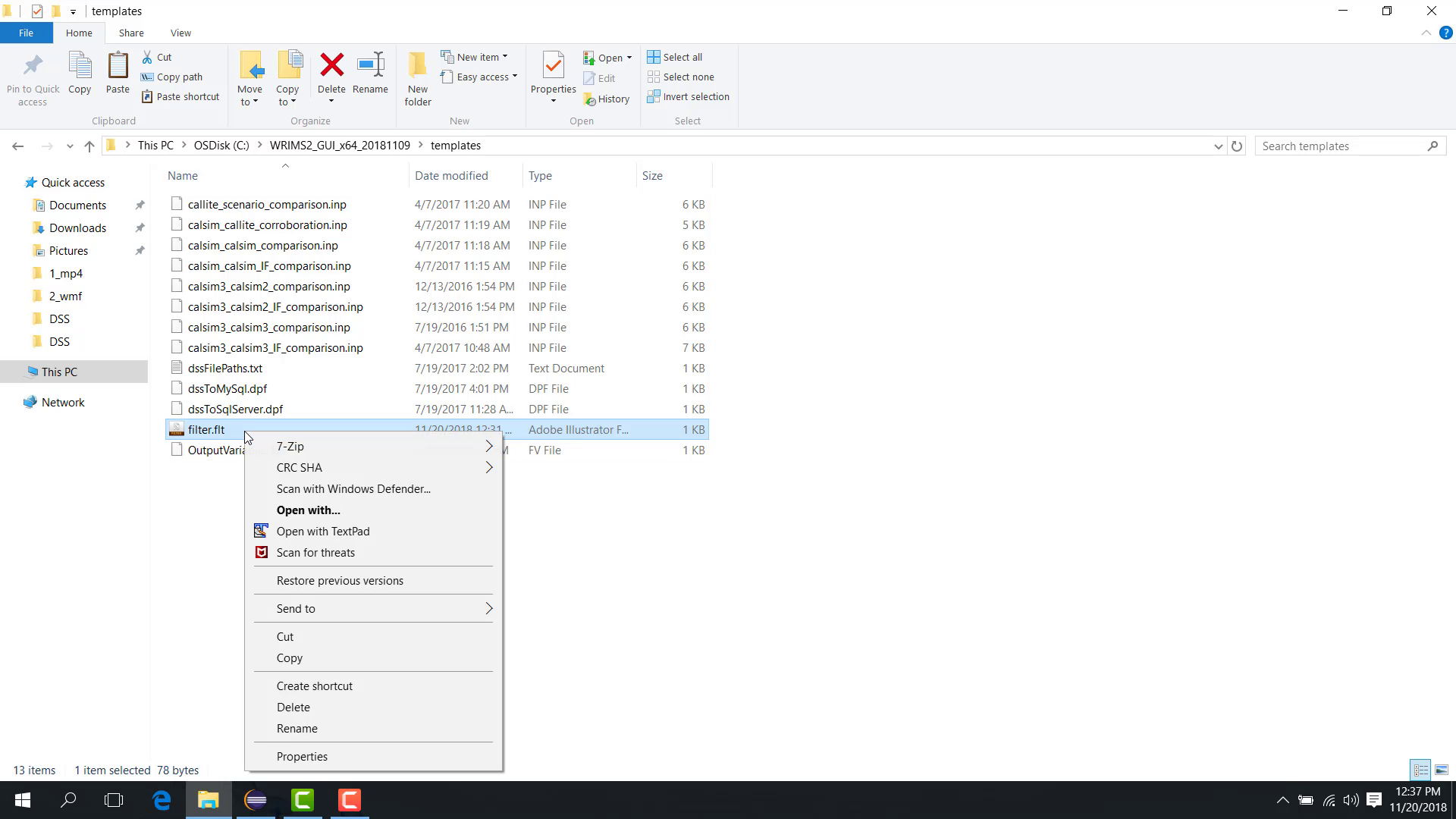
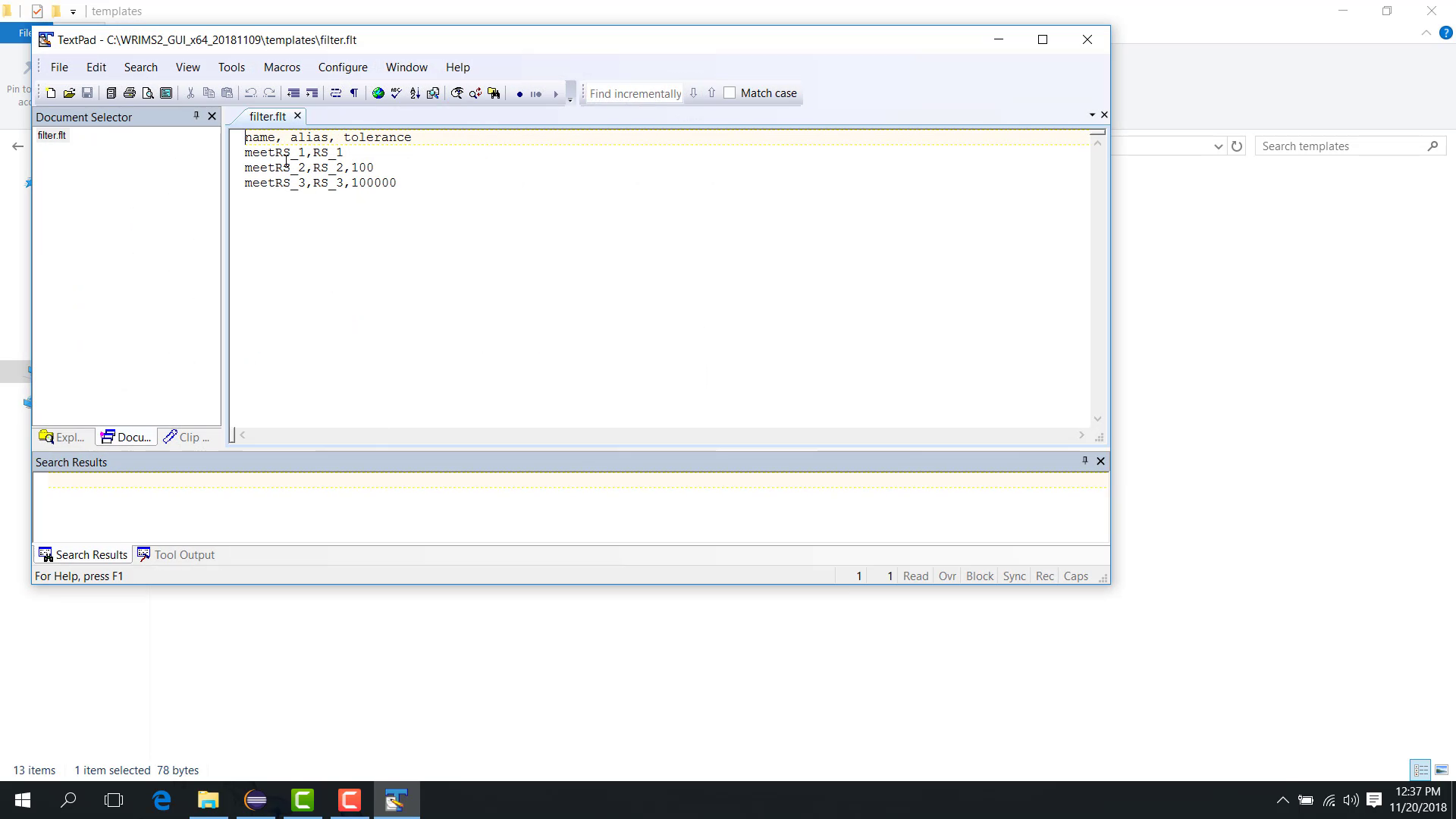
In the Goal View panel, a goal is marked as controlling when the left-hand side is equal to the right-hand side. A filtering file provides another way to evaluate controlling goals by allowing optional tolerances.
If no tolerance is provided, the goal is treated as controlling only when both sides are exactly equal.
If a tolerance is provided, the goal can still be treated as controlling when the difference is within the specified tolerance.
This concept is used later in the goal-filter workflow.
The images below show both the visual controlling-goal indicator and the filtering-file approach.
2.5 Basic Perspectives
Purpose
This chapter introduces the different perspectives available in WRIMS 3 GUI.
Before you start
WRIMS 3 GUI is open.
You want to understand which perspective to use for editing, debugging, plotting, schematic navigation, or DSS analysis.
Procedure
WRIMS 3 GUI includes several perspectives. A perspective is a task-oriented arrangement of views and tools designed for a particular type of work.
The perspectives shown in this chapter include:
IDE Perspective
DSS Perspective
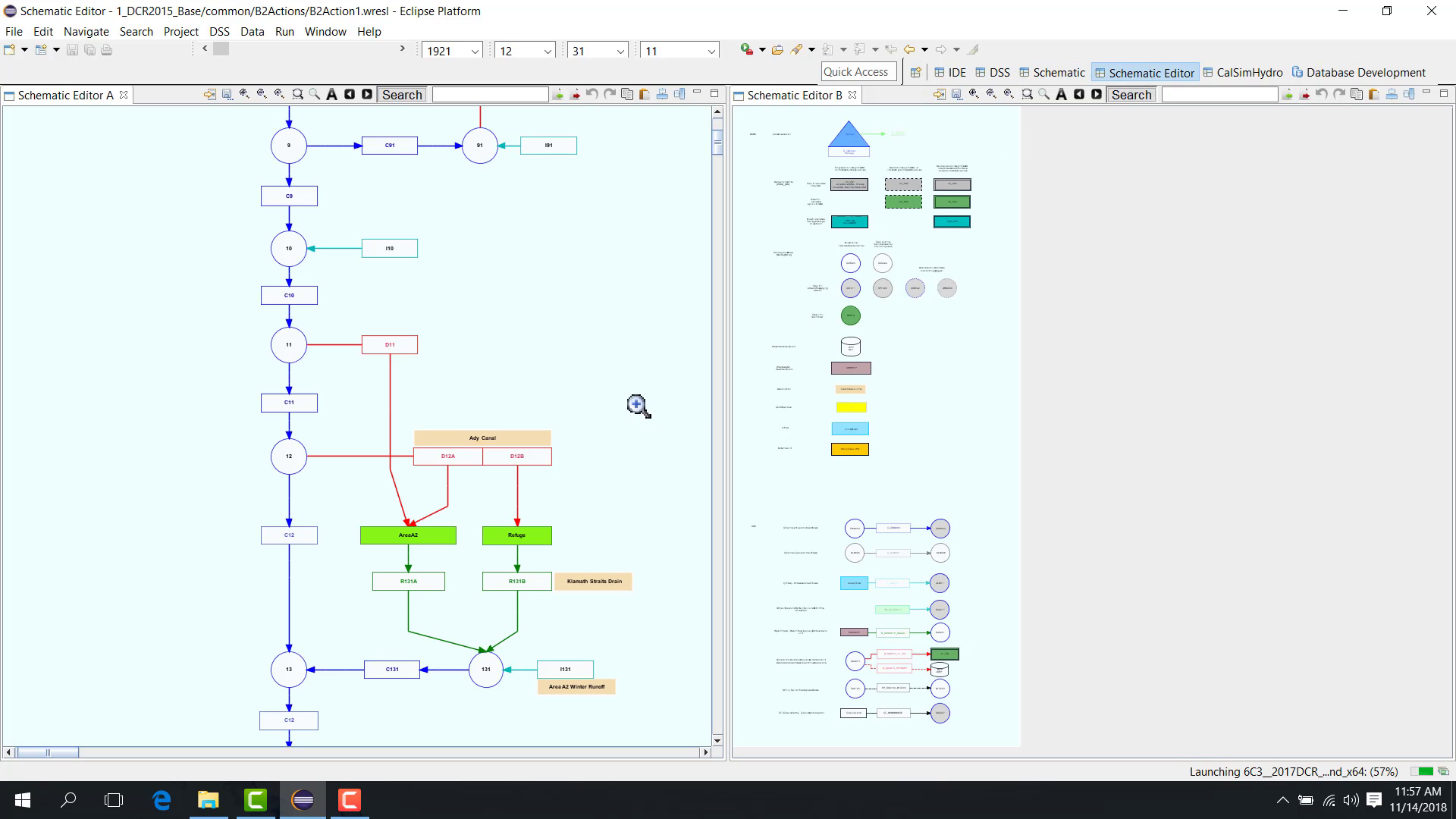
Schematic
Schematic Editor
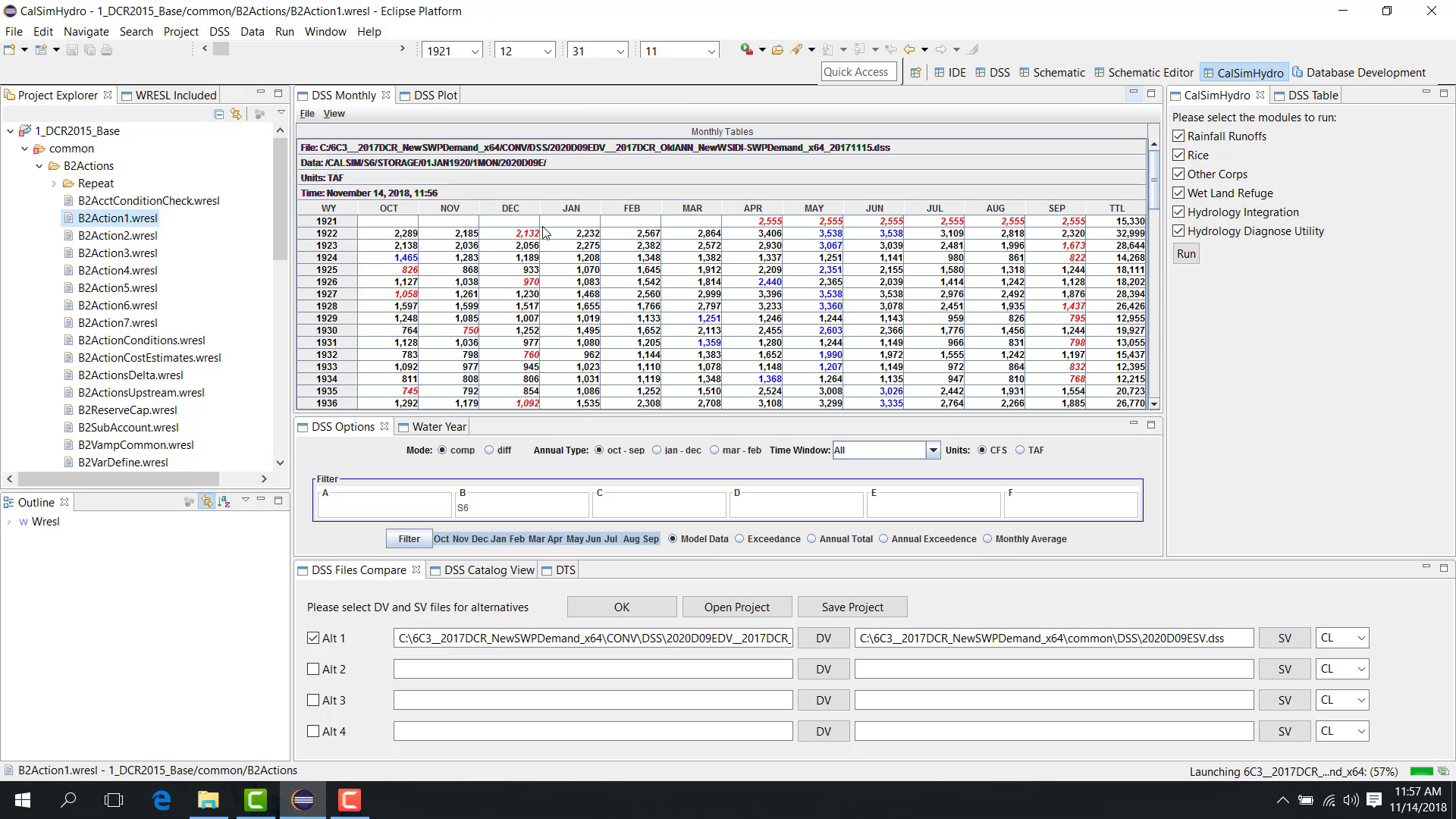
CalSim Hydro
Database Development
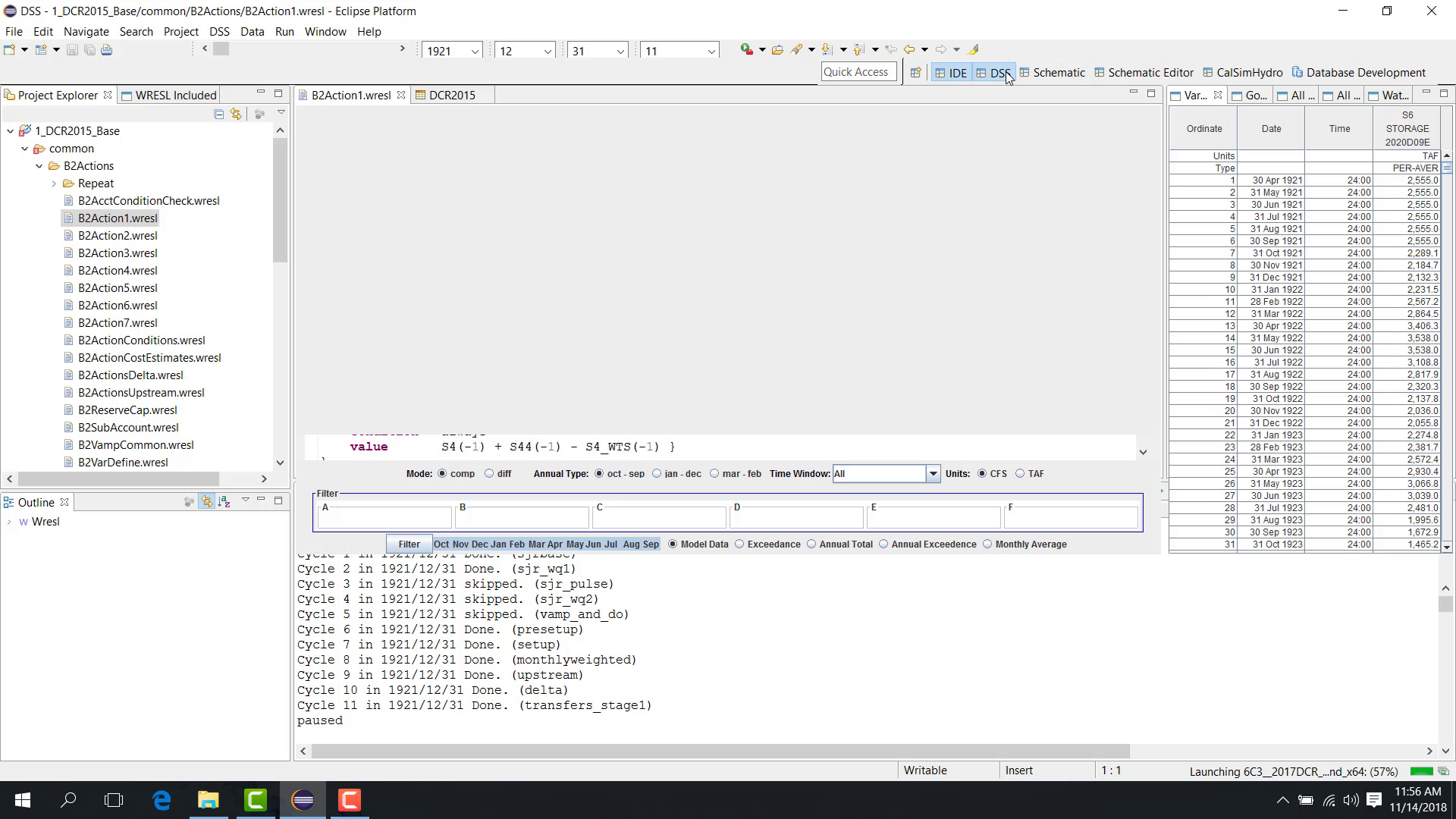
IDE Perspective
Use the IDE Perspective to:
edit WRESL code;
debug the model;
run the model;
launch the study;
view runtime data during execution.
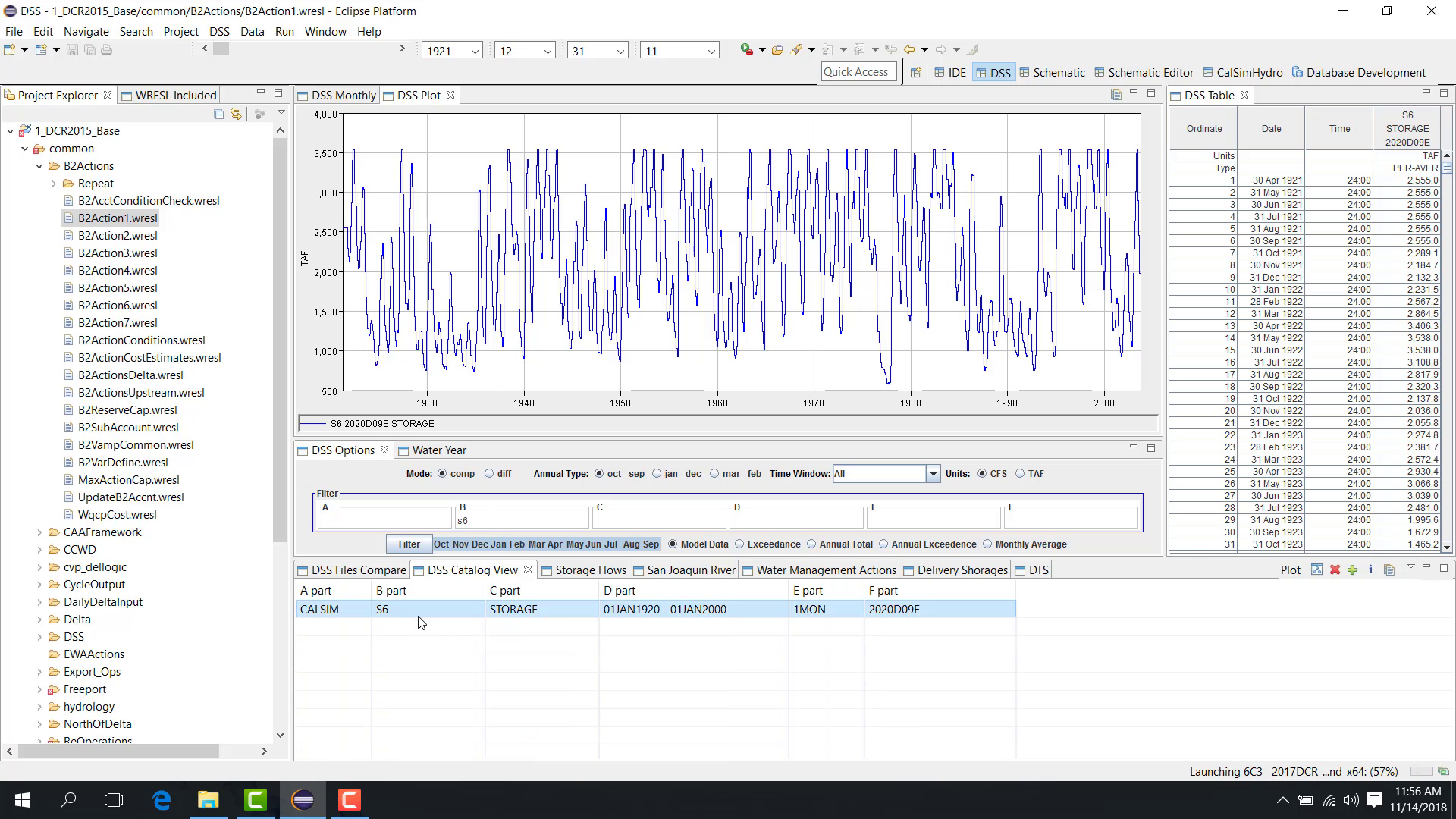
DSS Perspective
Use the DSS Perspective to display DSS data.
Because one of the outputs of WRIMS 3 is HEC-DSS, this perspective is used to visualize DSS time series in:
tables;
charts.
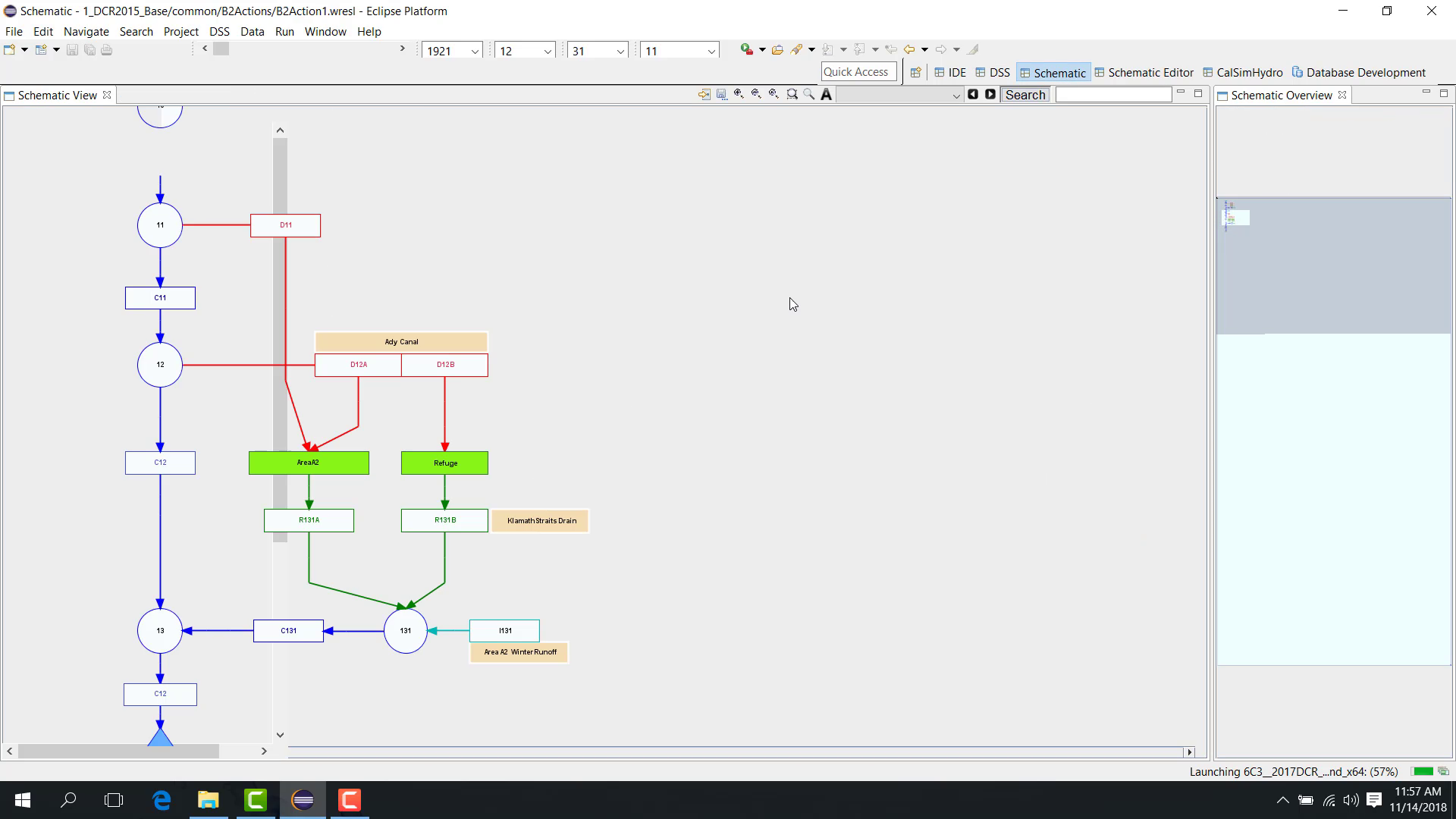
Schematic
Use the Schematic perspective to display the WRIMS network graphically and navigate between the full system and a local area of interest. This perspective is intended for display and navigation, not for editing the schematic definition.
For the complete workflow for loading the schematic definition, opening the full network display, and navigating through the main canvas and overview pane, see 9.1 Schematic View Workflow.
Schematic Editor
Use the Schematic Editor to edit schematic diagrams and save the updated schematic as an XML file. This perspective is intended for editing and XML updates, not for full-network inspection.
For the full workflow, including editor setup, file selection, canvas editing, object alignment, and saving, see 9.2 Schematic Editor Workflow.
CalSim Hydro
In the CalSim Hydro perspective, a default CalSim Hydro study is included with the package so that users can work with CalSim Hydro directly from the GUI.
Database Development
Use the Database Development perspective to connect to databases such as:
SQL Server;
MySQL.
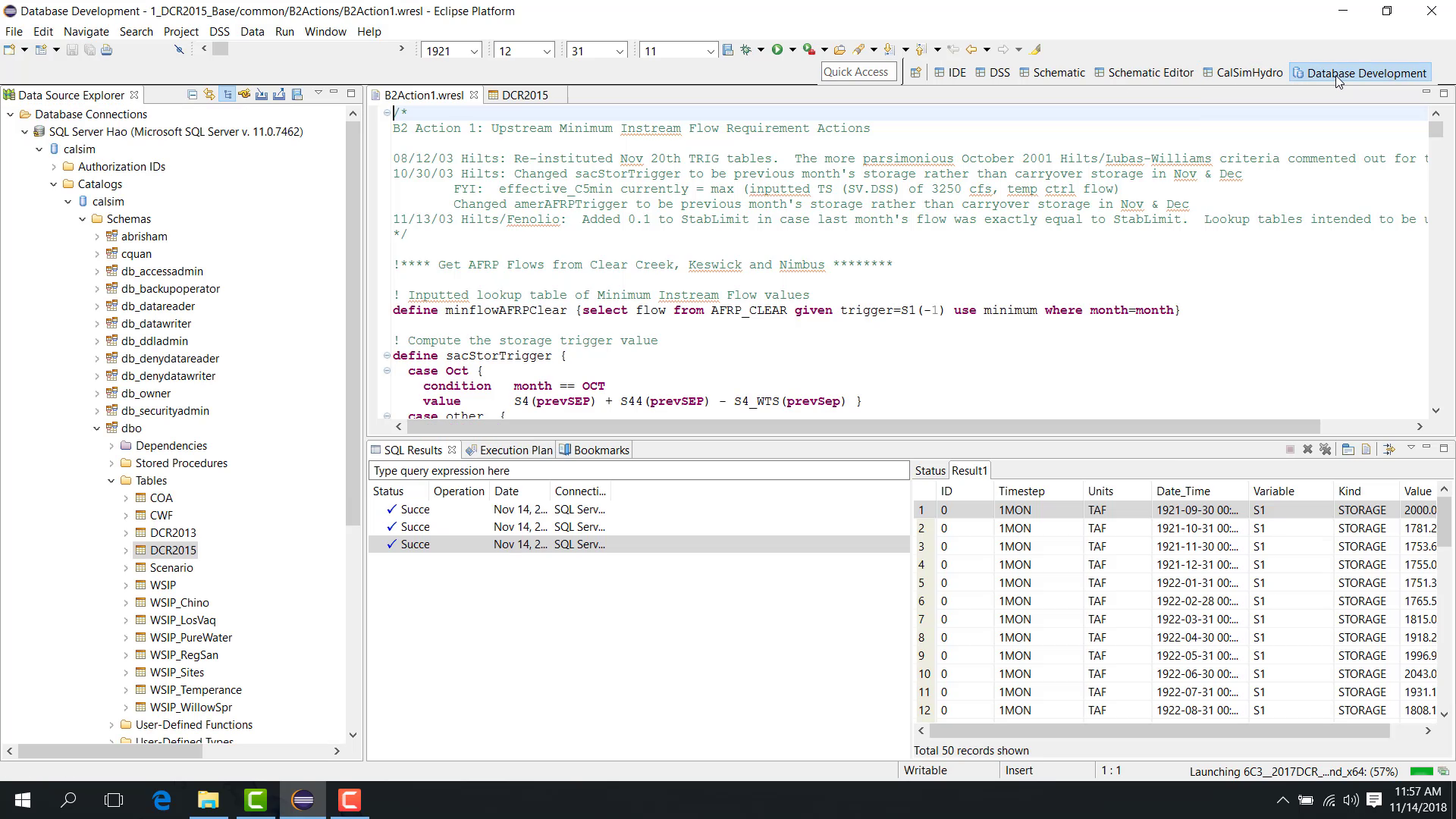
This perspective is used to:
visualize data;
manage data;
connect to databases;
work with outputs written to a SQL database.
Notes
A perspective is a task-oriented arrangement of views and tools.
The IDE Perspective is mainly used for code editing, running, and debugging.
The DSS Perspective is mainly used for time-series inspection and comparison.
The Schematic perspective is used for graphical display and navigation.
The Schematic Editor is used for diagram editing and XML-based schematic updates.
Related sections
2.6 Basic Outline Panel for the WRESL File
Purpose
This chapter explains the Outline panel for the WRESL File.
Before you start
A WRESL file is open in the editor.
Procedure
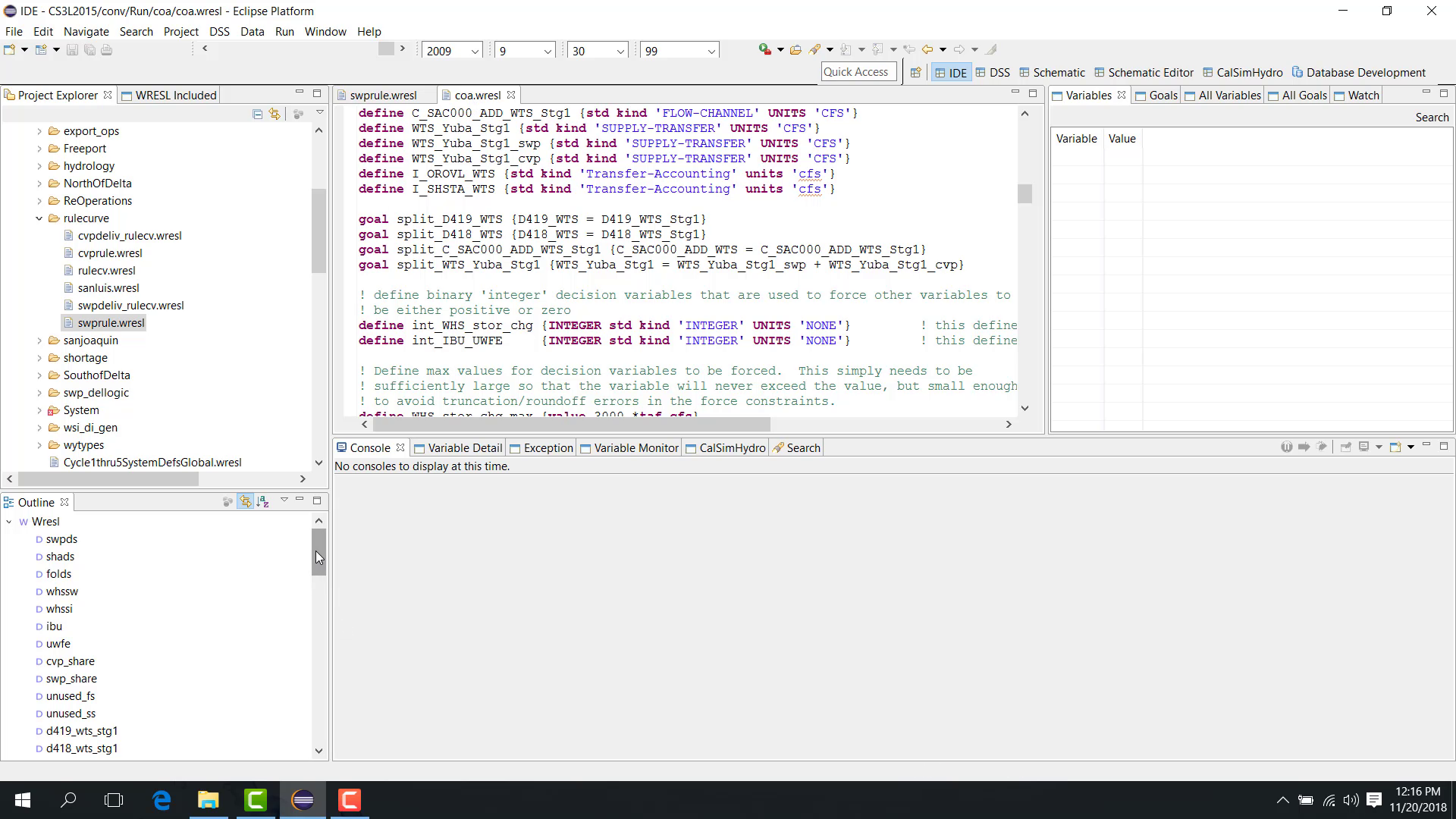
The Outline panel lists all variables and goals in the WRESL file currently open in the editor.
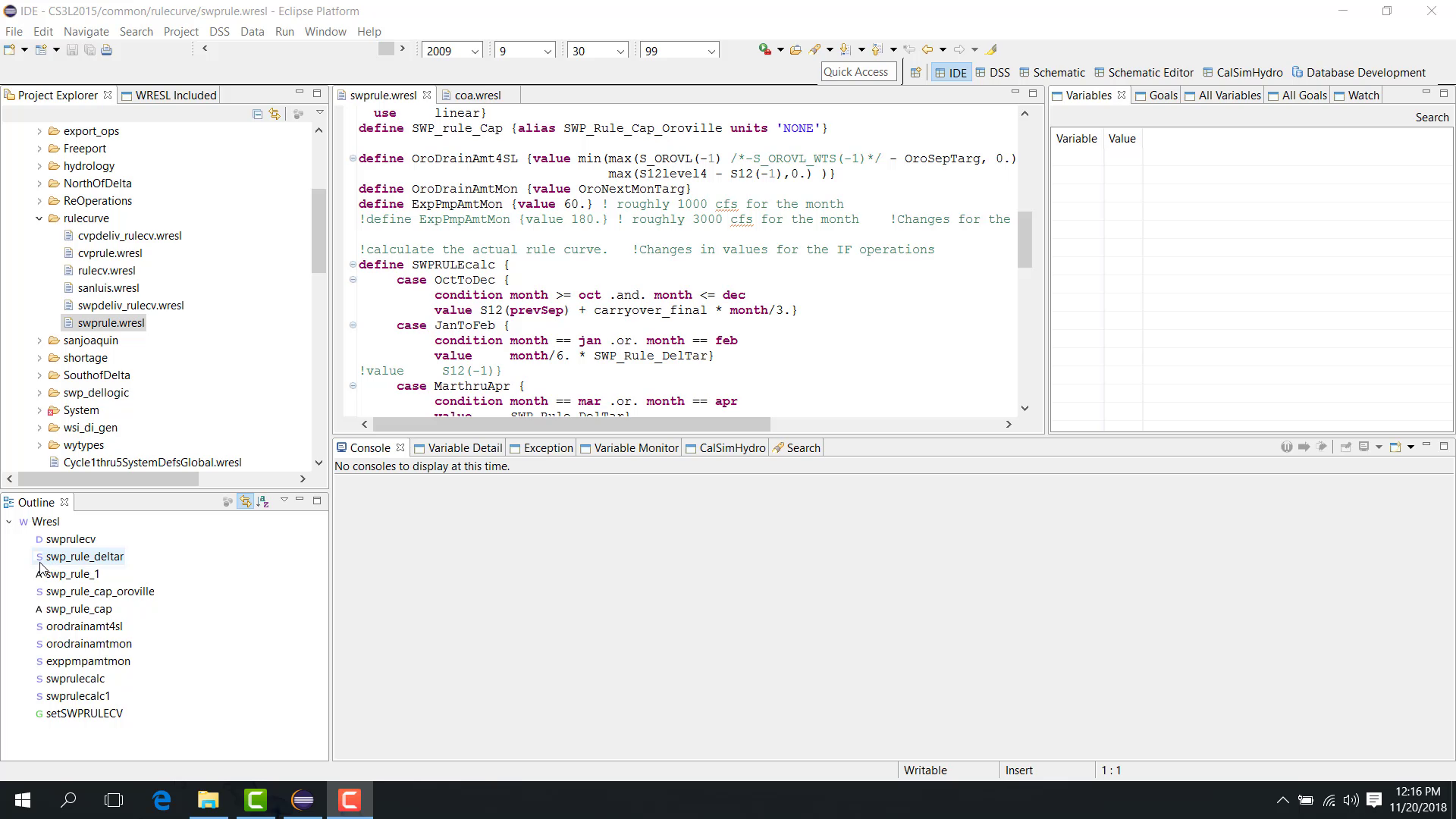
When a file is open, the Outline panel can show:
decision variables;
state variables;
aliases;
goals.
The symbols mean:
D = decision variable
S = state variable
A = alias
G = goal
Selecting an item in the Outline panel moves the editor to the definition of that variable, alias, or goal.
This allows you to navigate directly to:
a selected goal;
an alias definition.
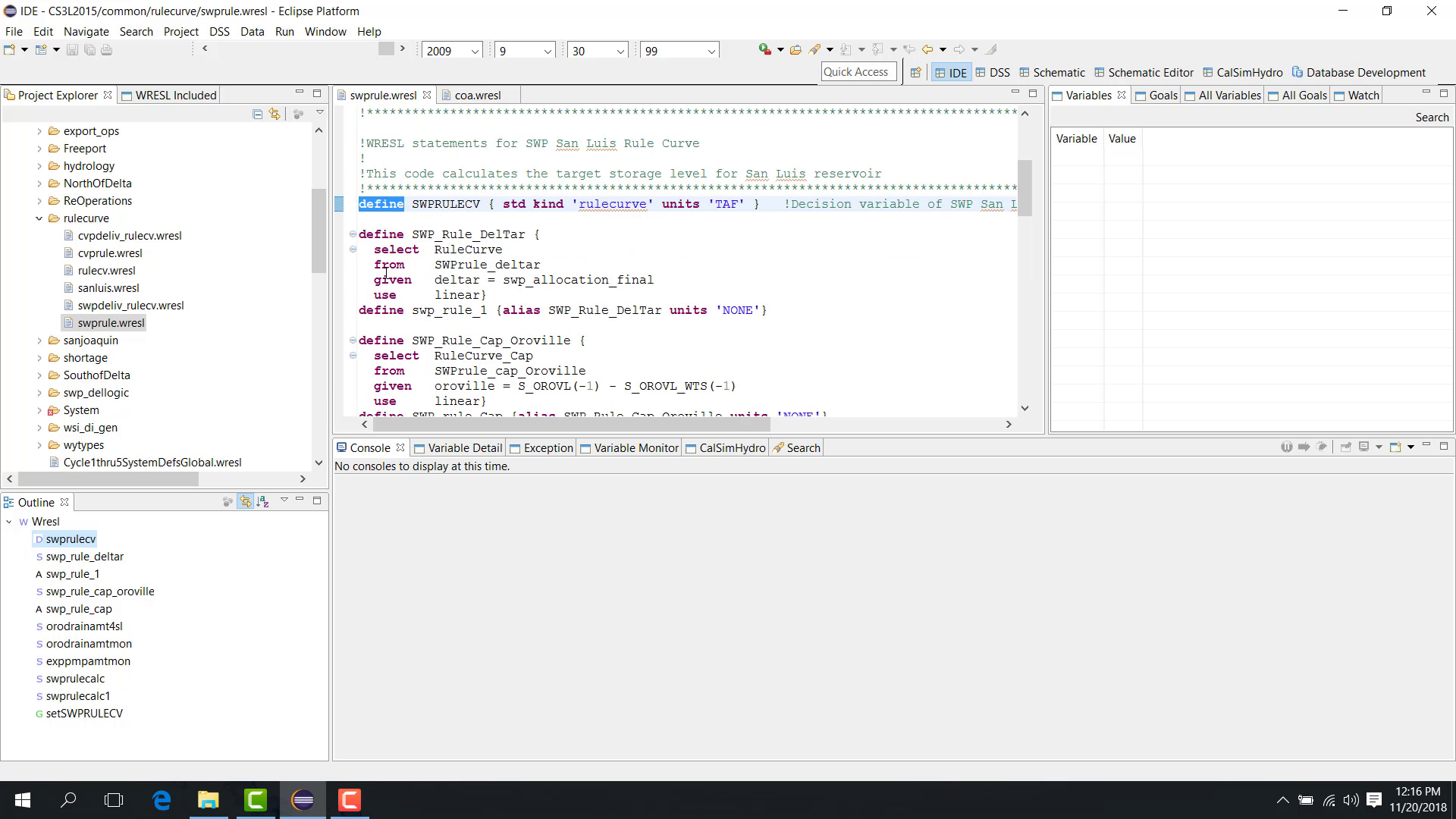
If you open another file, the Outline panel updates automatically to match the file currently open in the editor.
Notes
The Outline panel is especially useful when a WRESL file is too long to navigate efficiently by scrolling.
Related sections