3. Model Structure and Source Navigation
3.1 Basic WRESL Plus
Purpose
This chapter shows how to turn WRESL Plus on or off.
Before you start
A WRESL file is open in the editor.
Procedure
Some models use WRESL, while others use WRESL Plus, which supports extended language features. WRIMS 3 now defaults to WRESL Plus support to ensure compatibility with all models.
To turn the feature on or off:
Open the launch configuration using either Run Configuration or Debug Configuration.
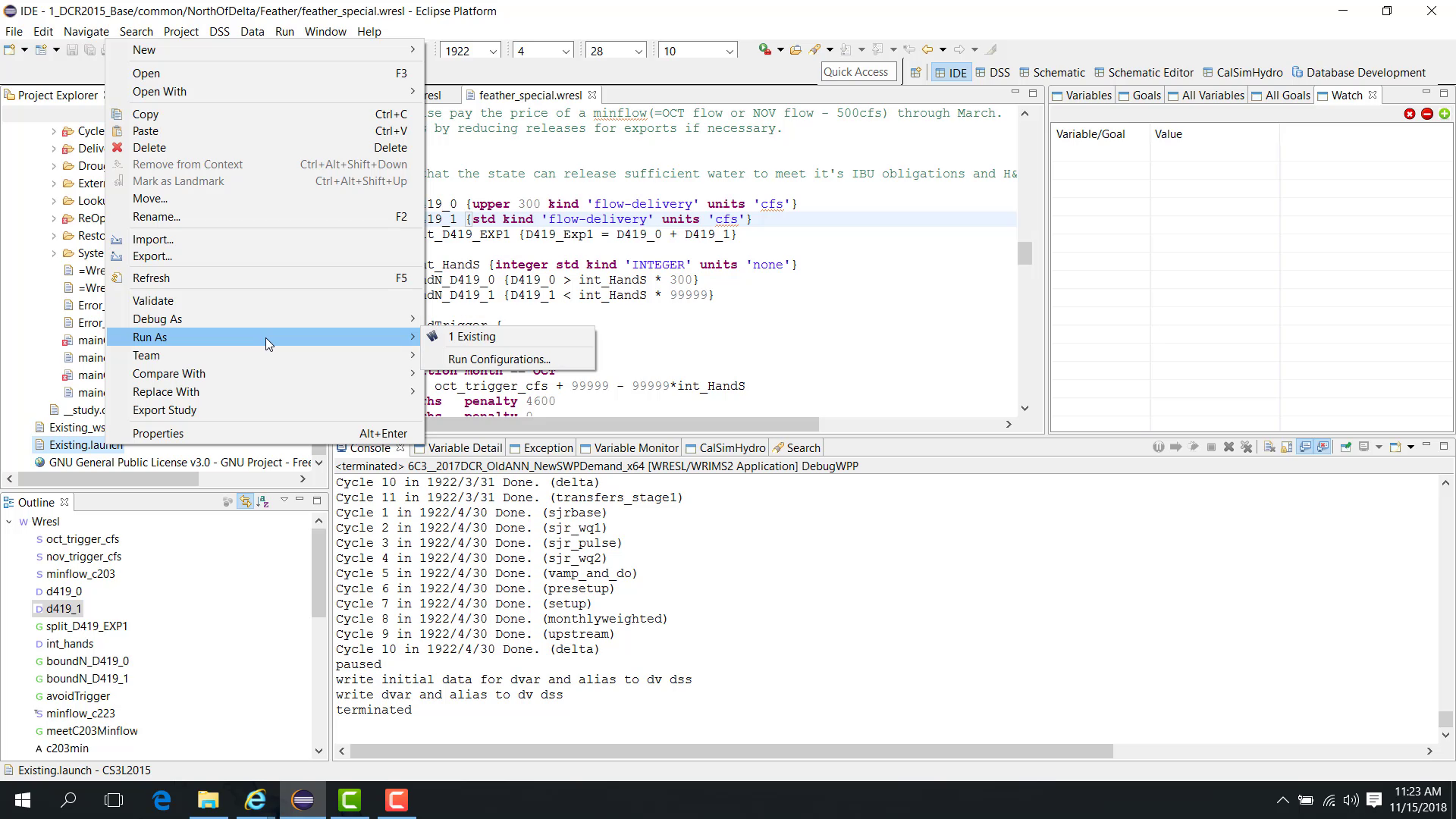
Select the launch file.
Open the Configuration tab.
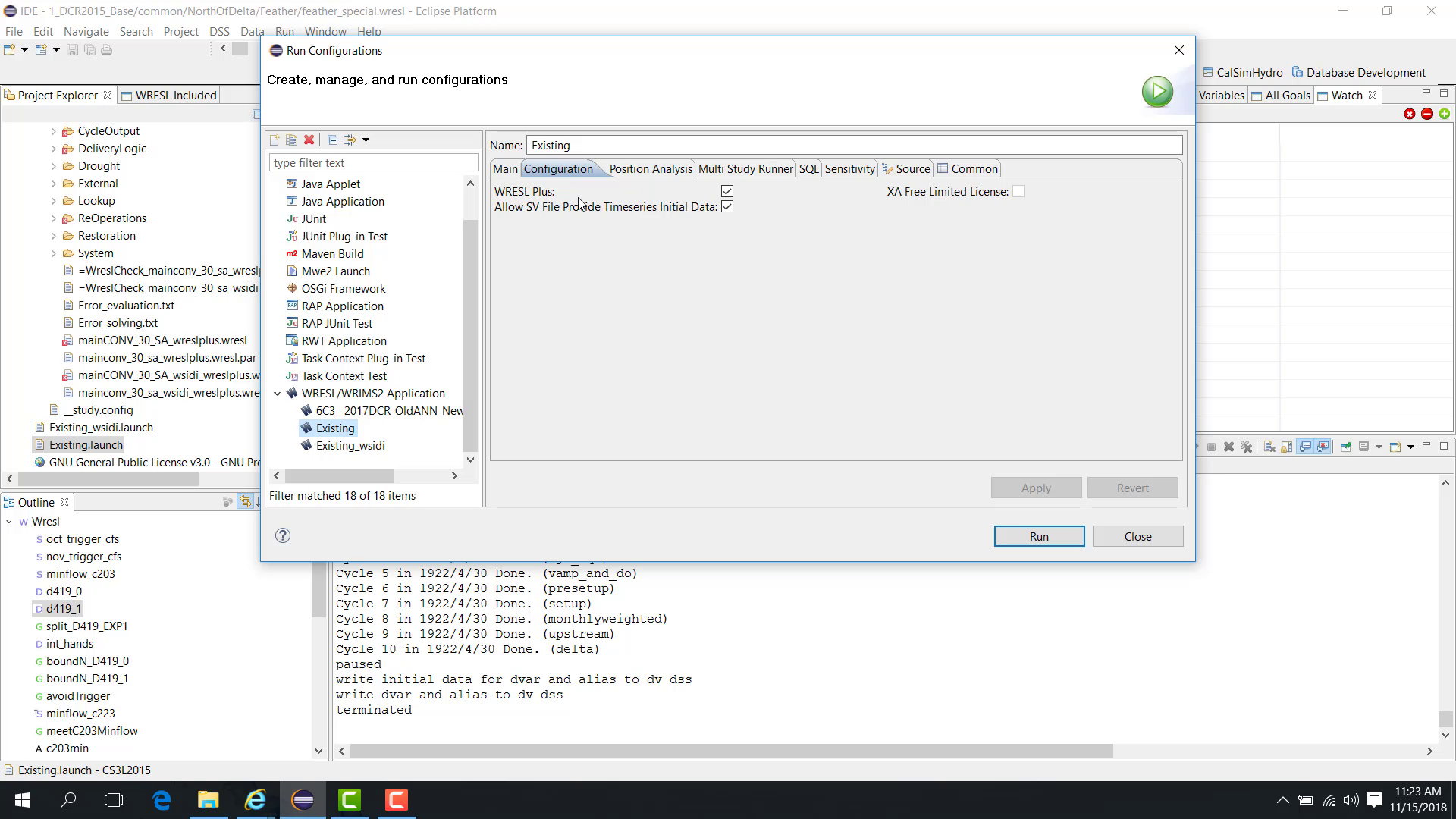
Locate the WRESL Plus option.
Turn it on or off as needed.
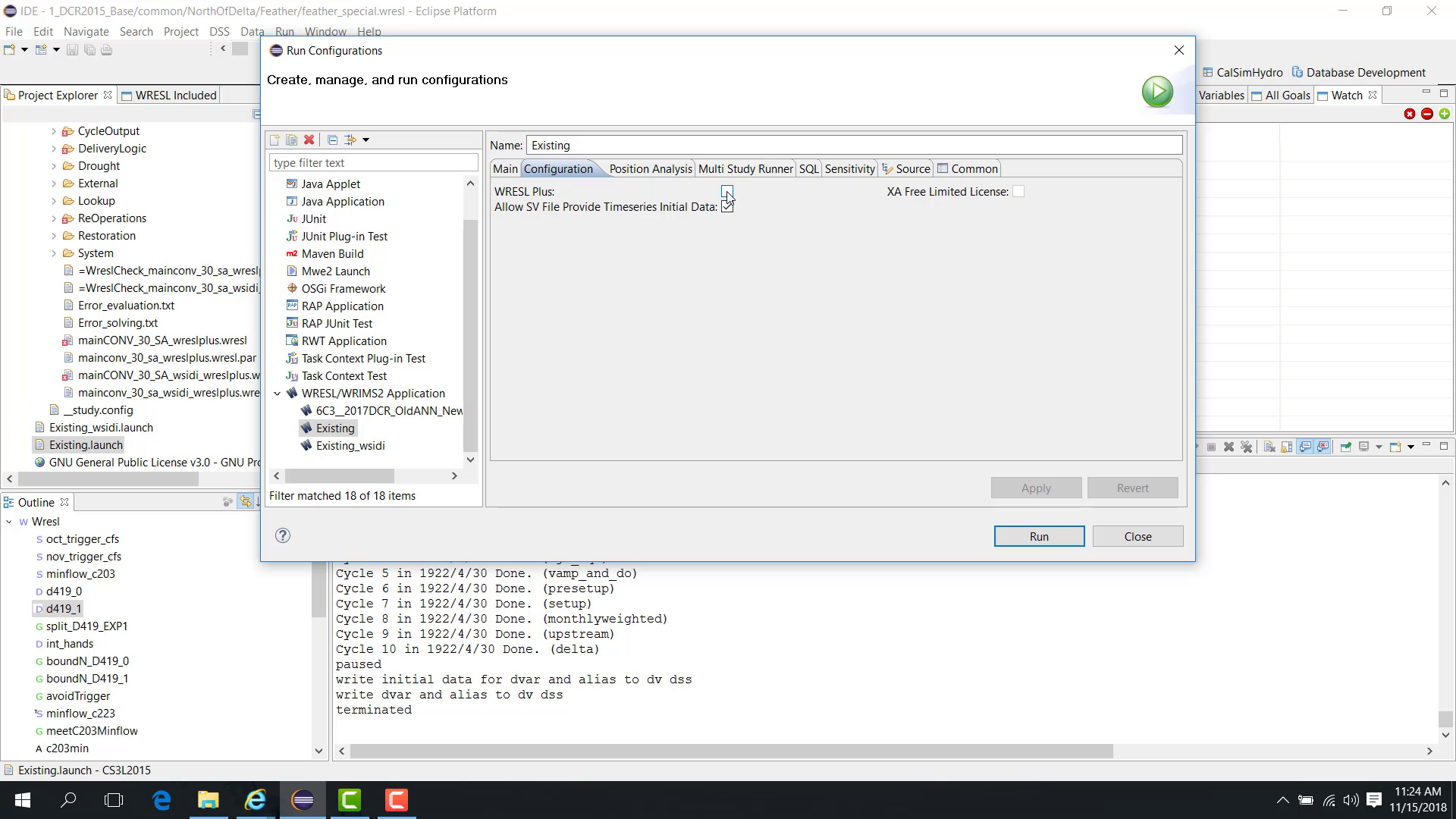
Click Apply.
If the model was written in WRESL Plus, this option must be enabled so that WRIMS 3 GUI can parse the model correctly.
This behavior can also be confirmed in Debug mode:
open the launch file in Debug Configuration;
confirm that WRESL Plus is enabled;
start the model in Debug mode;
check the console for the message WRESL Plus parsing completed.
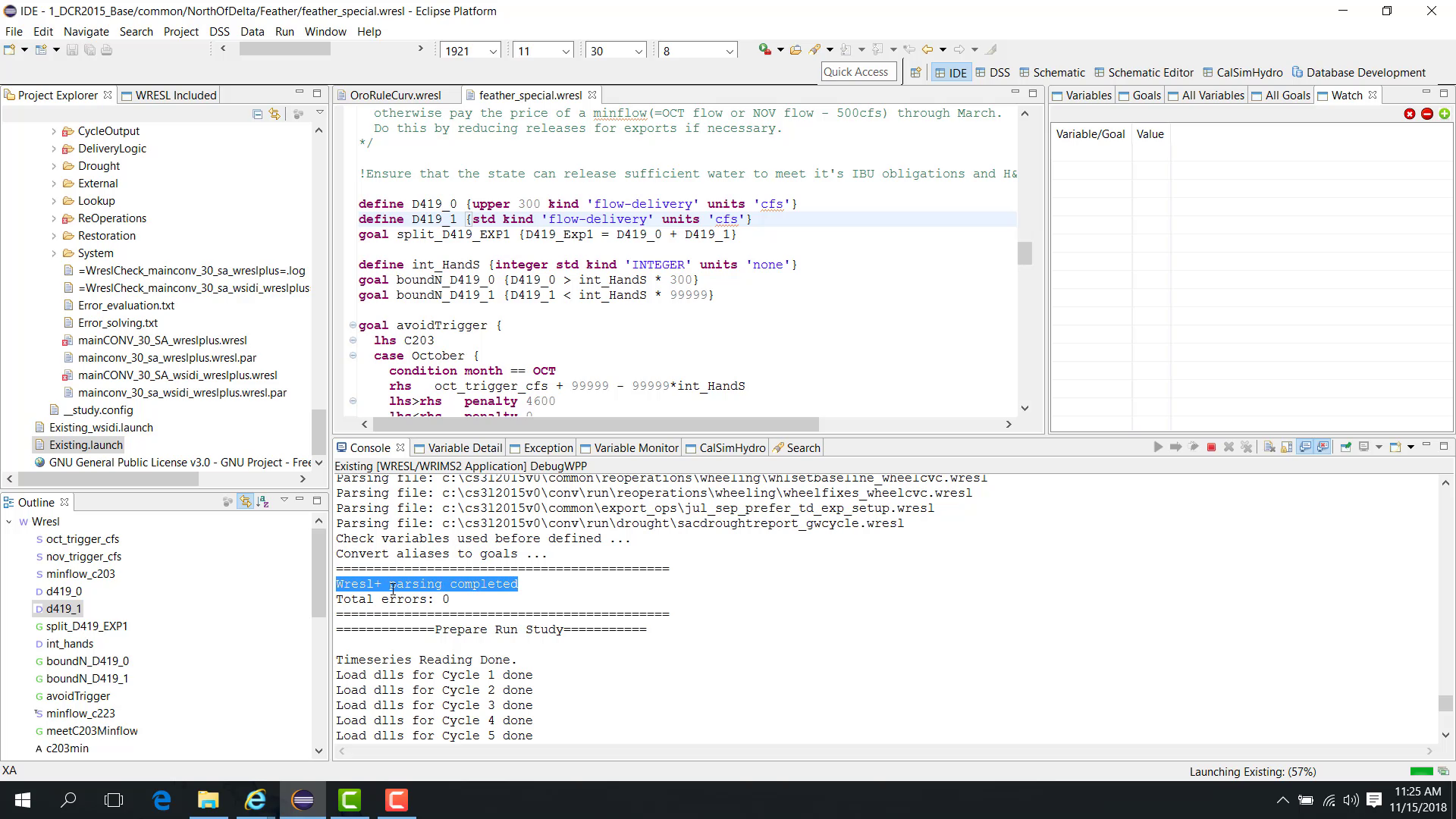
If the model uses regular WRESL instead, the console shows WRESL parsing completed.
At the end of the run, terminating the study saves the results to DSS and ends execution.
Notes
This setting affects model parsing behavior in the editor and launch configuration.
Use WRESL Plus only when the model requires the extended language features.
Related sections
3.2 Debug Find Reference
Purpose
This chapter explains how to use Find Reference in the WRESL editor.
Before you start
A WRESL file is open in the editor.
Procedure
In the WRESL editor, point to a variable, right-click it, and choose Find Reference.
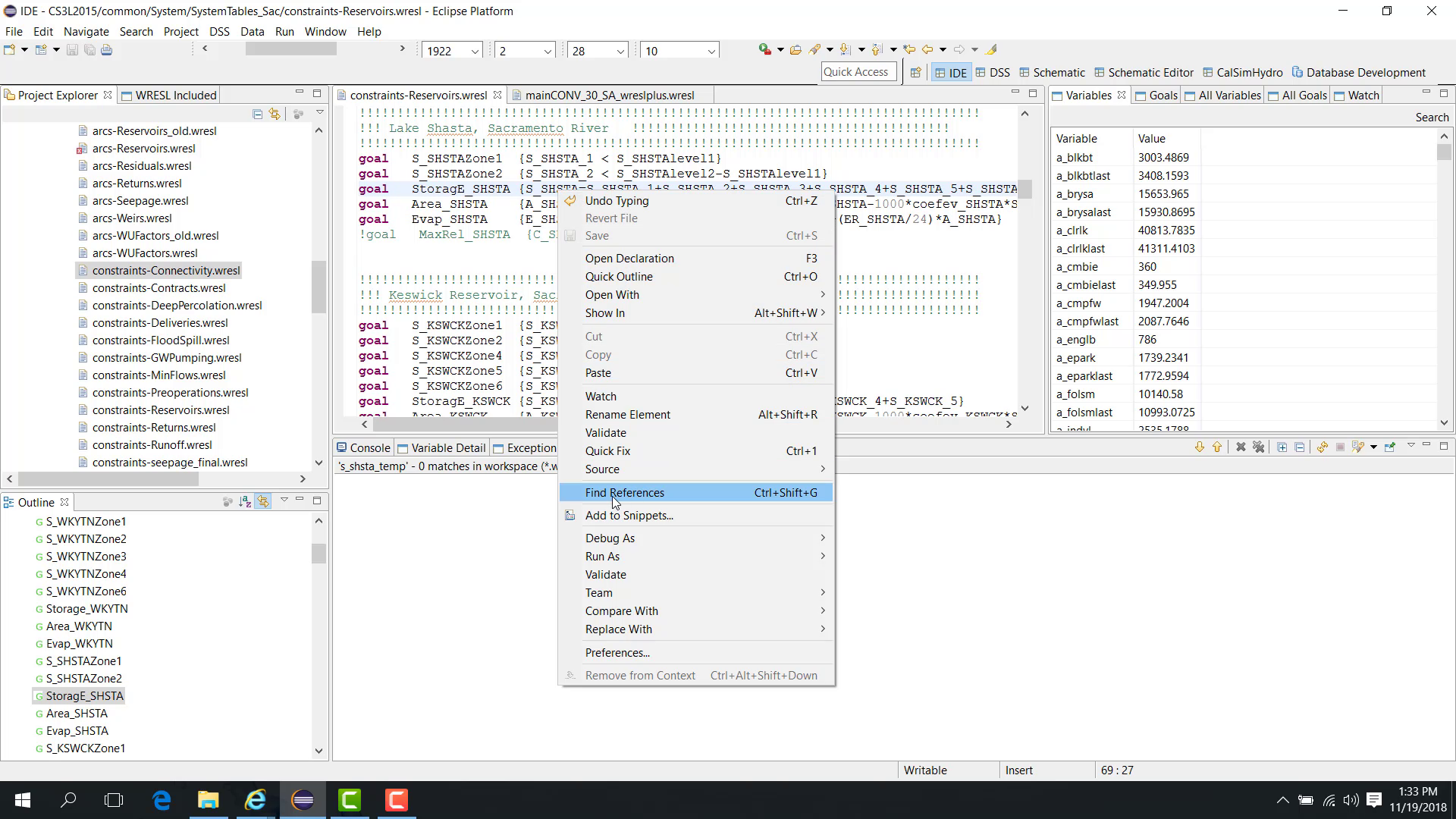
WRIMS 3 GUI then lists all locations where that exact variable is used.
The example shown here uses a variable such as s_shsta.
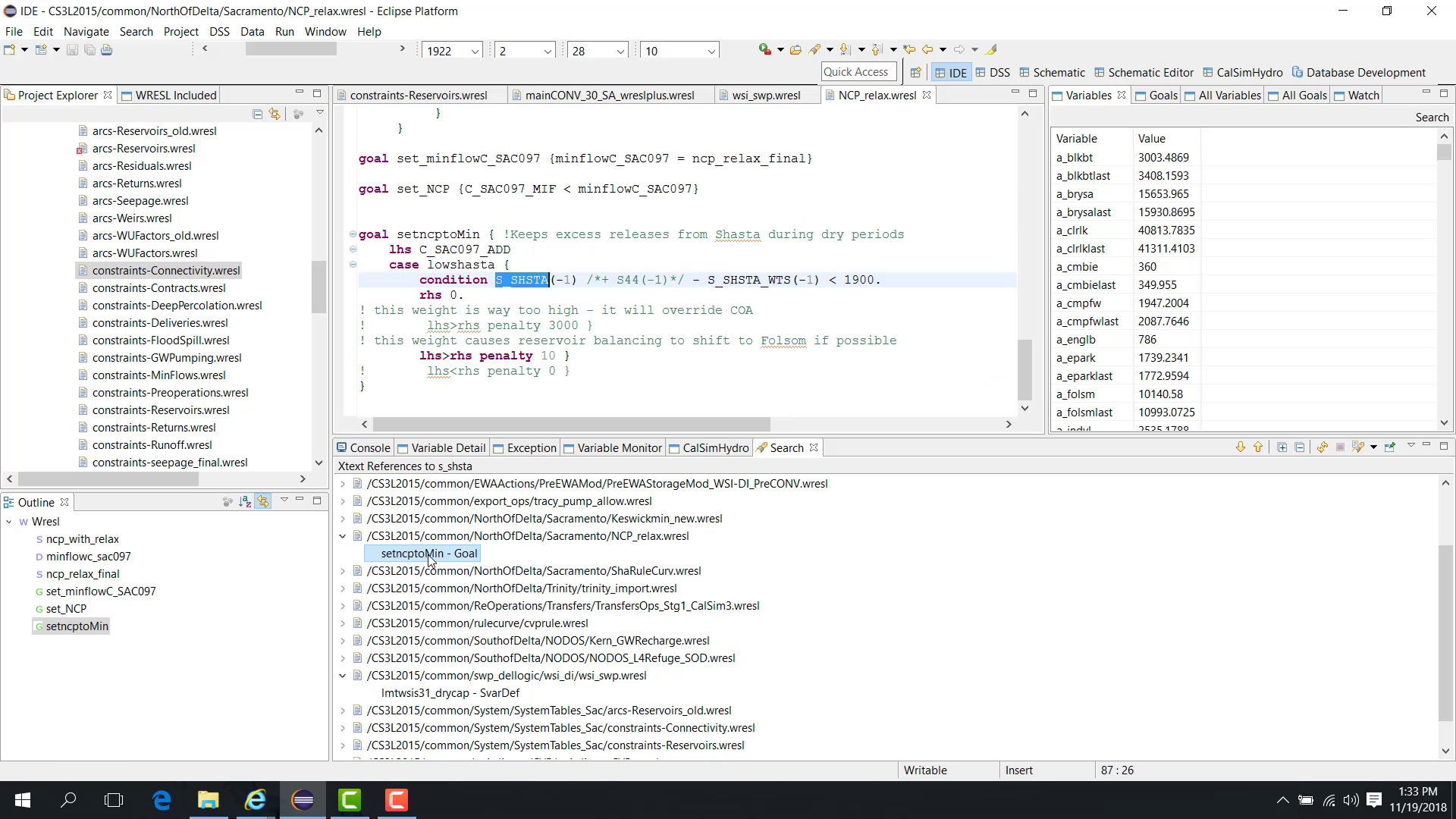
The results list:
the files where the variable is used;
the lines where it appears.
Selecting a result opens the file and highlights the variable occurrence.
Find Reference vs Search
Find Reference and regular Search behave differently:
Find Reference matches the exact variable name only.
Search may return partial matches such as variables that contain the same text, for example: -
s_shsta-s_shsta_1-s_shsta2
Use Find Reference when precision is required.
Notes
This feature is useful when tracing model logic before editing or debugging a variable.
Related sections
3.3 Debug Study Cycle WRESL
Purpose
This chapter explains how to display the WRESL files used by the study as a whole or by a selected cycle.
Before you start
A study is loaded.
You want to know which WRESL files are included globally or for a specific cycle.
Procedure
Start from the main WRESL file.
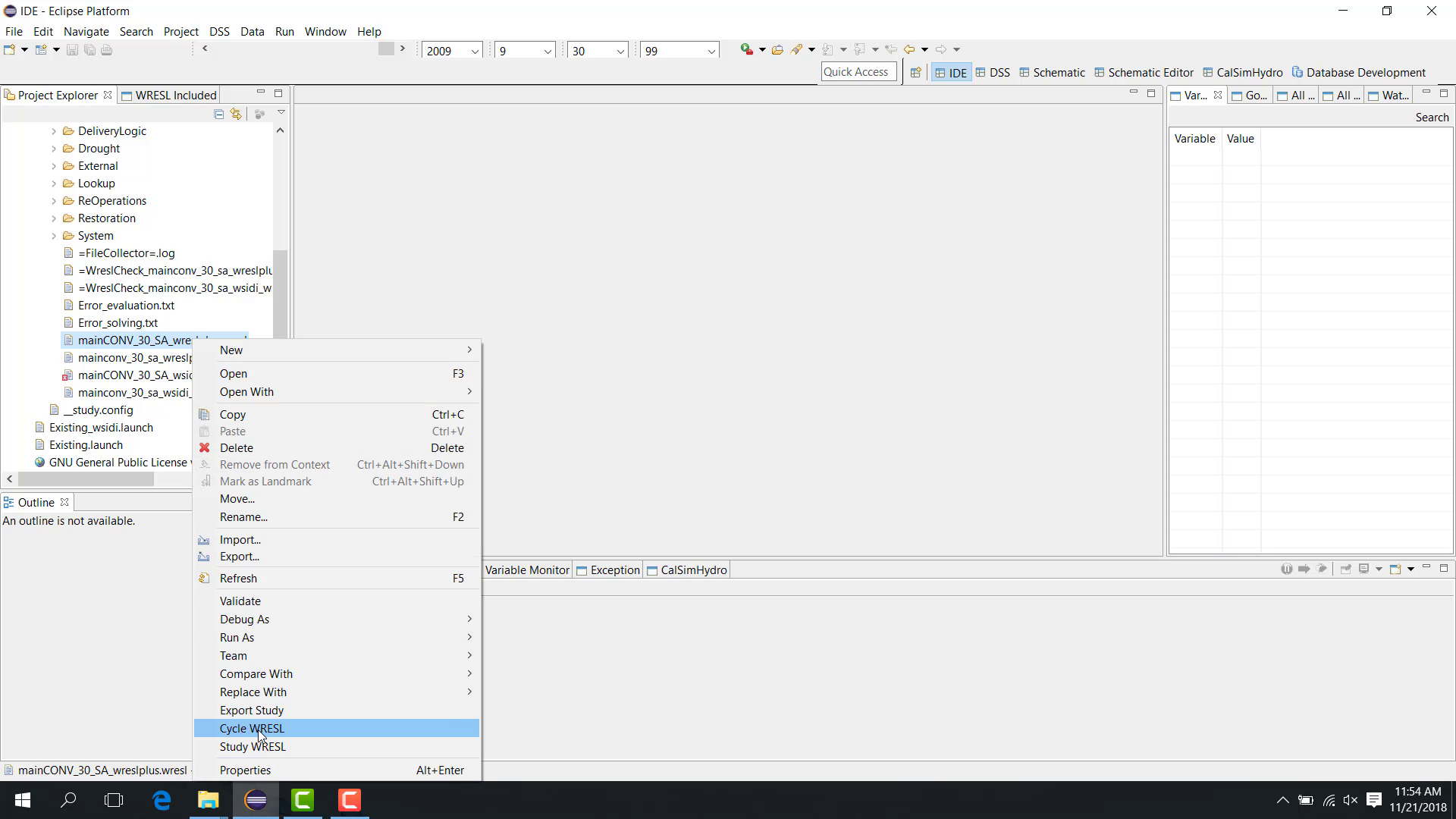
When you right-click the main file, two options are available:
Study WRESL
Cycle WRESL
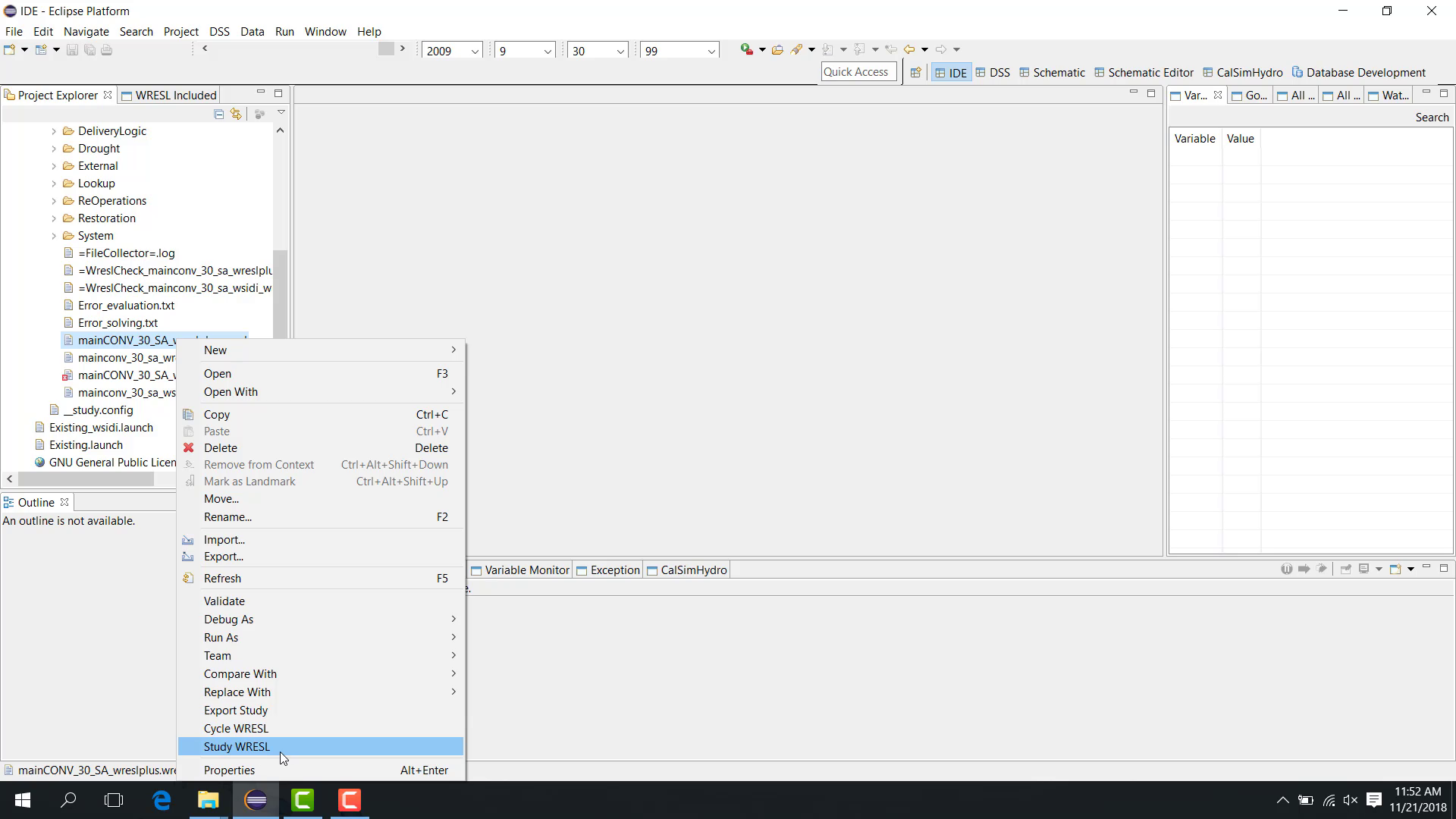
Study WRESL
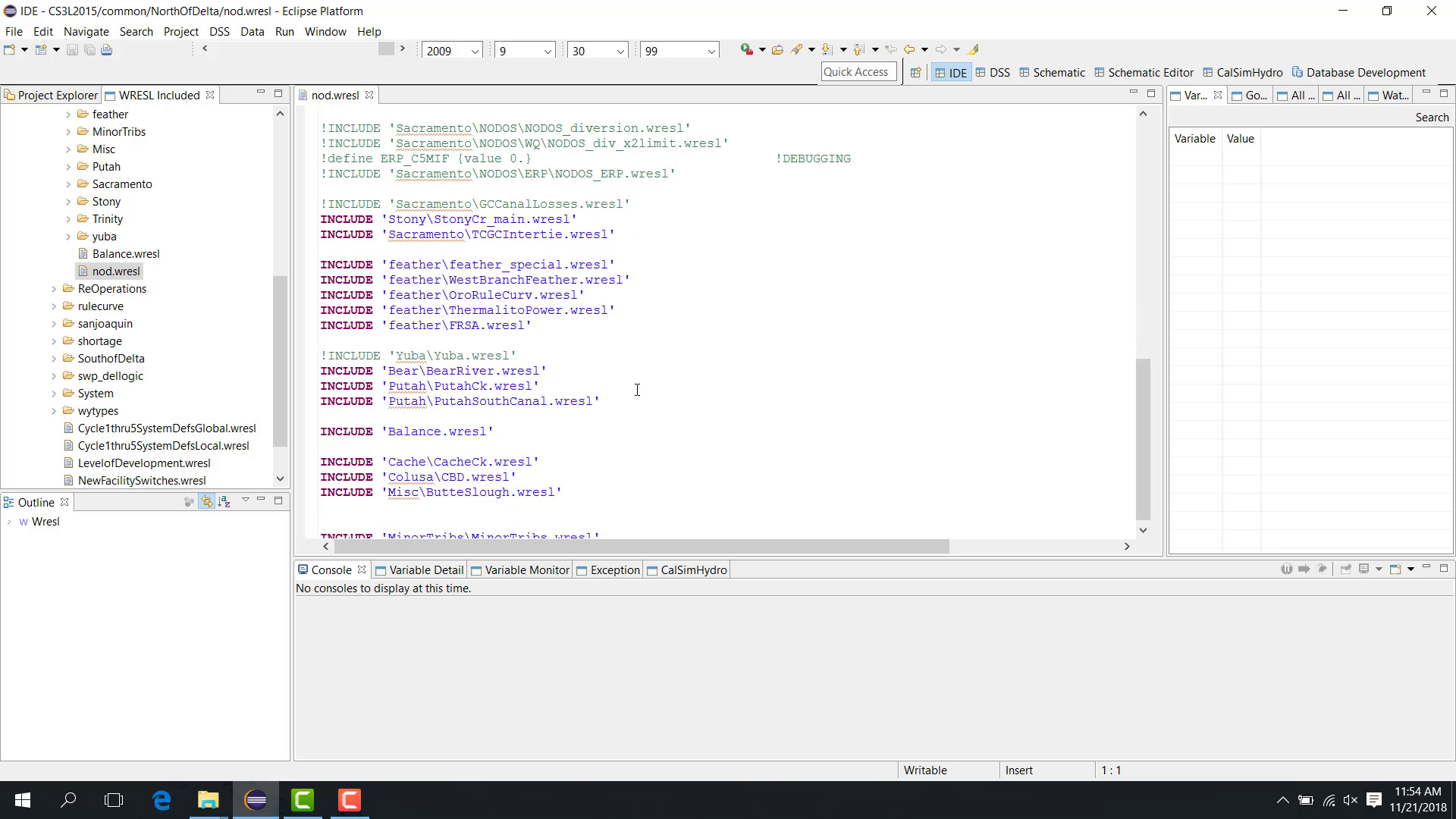
If you choose Study WRESL, WRIMS 3 GUI parses the main file and determines all WRESL files used by the study.
The results are displayed in the WRESL Included panel.
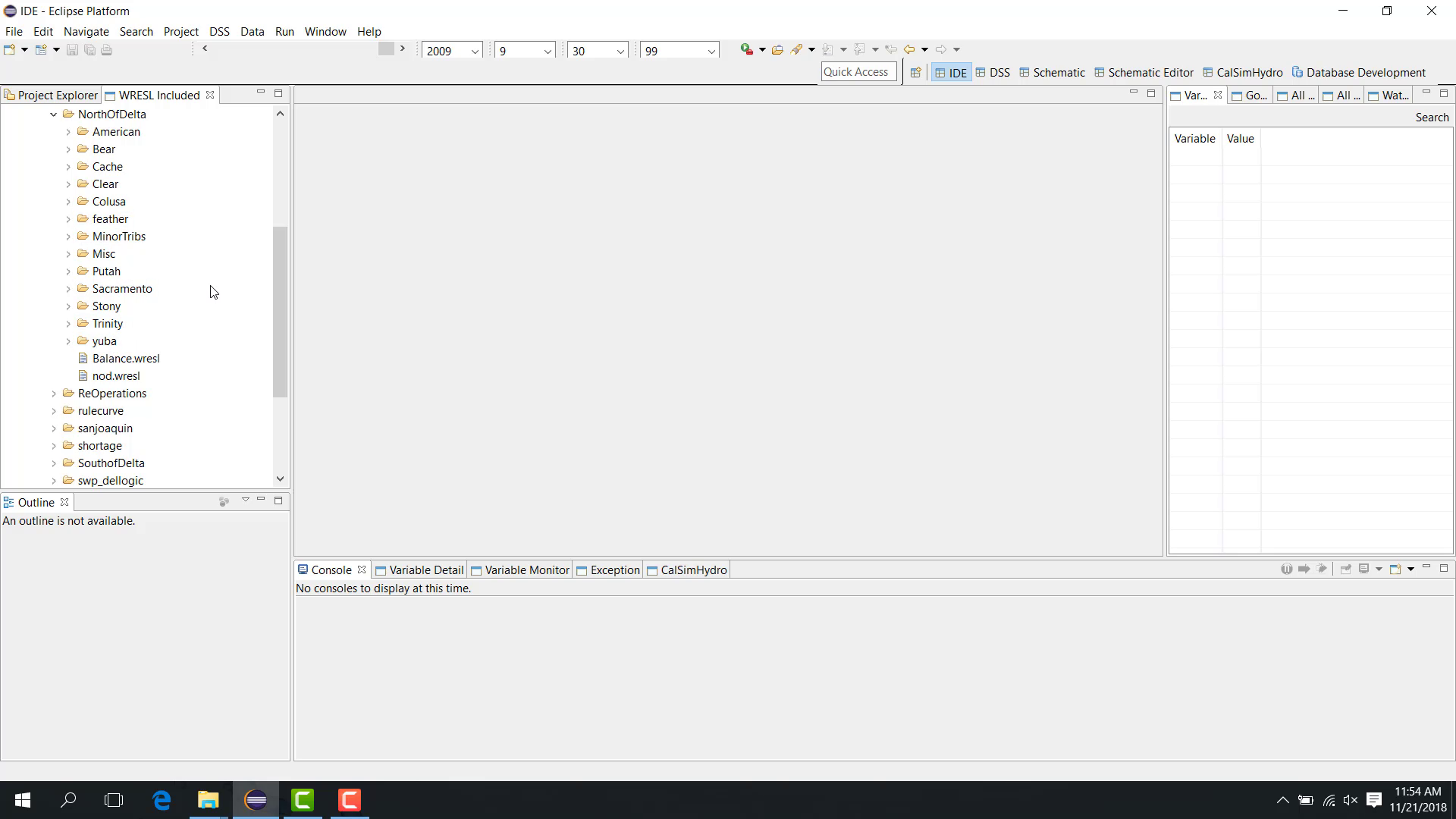
The included list may contain folders such as:
miscyubasacramentotrinity
If multiple main files exist in the study, only the one actually used by the study is included.
Selecting a file in the WRESL Included panel opens it in the editor.
Cycle WRESL
If you choose Cycle WRESL, WRIMS 3 GUI prompts you to select the cycle to inspect.
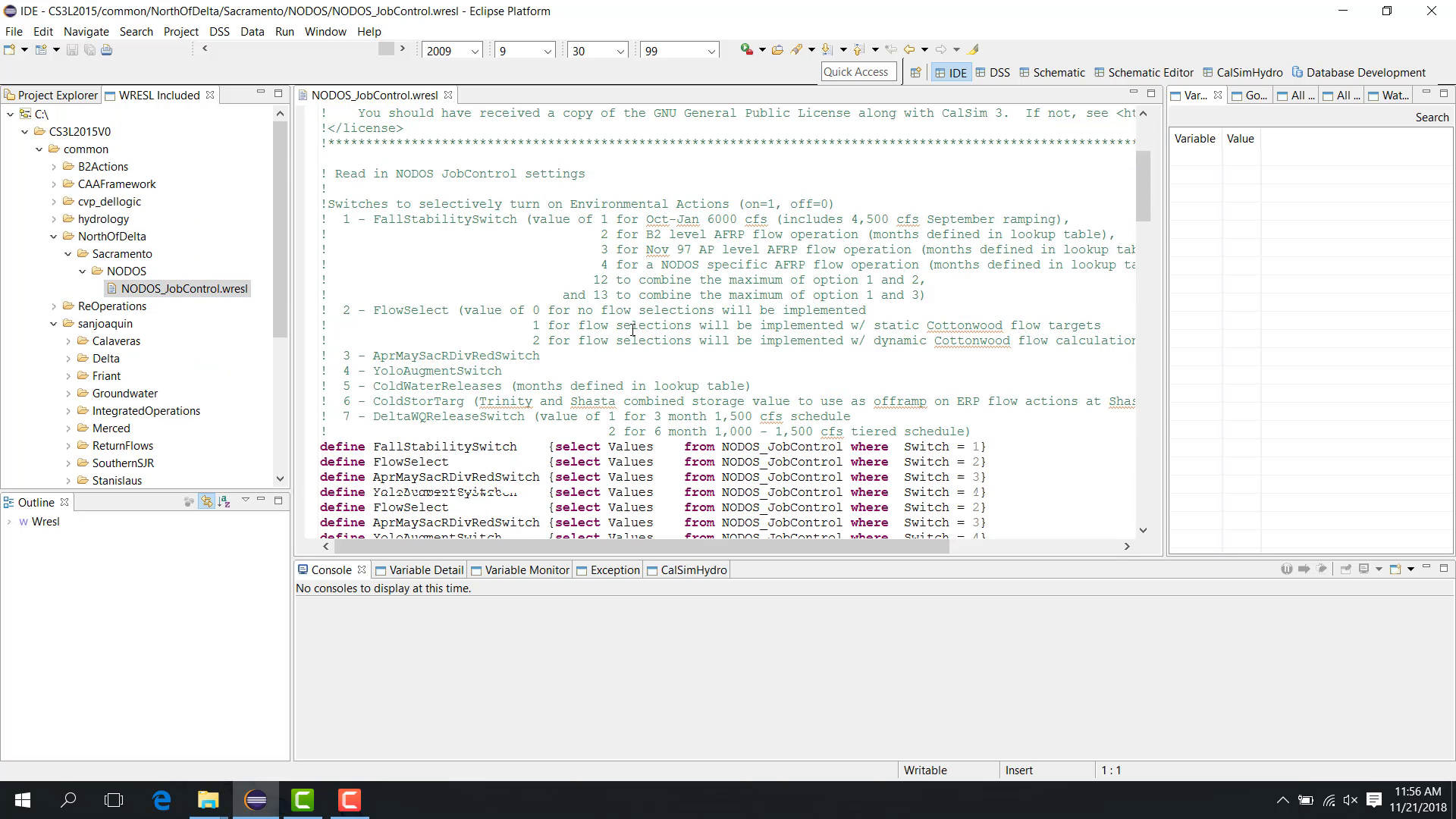
After you select a cycle, WRIMS 3 GUI parses the study and determines only the WRESL files used in that cycle.
The results again appear in the WRESL Included panel, but this time only the files active in the selected cycle are shown.
Notes
Study WRESL shows the full included set.
Cycle WRESL narrows the list to files active in the selected cycle.
Related sections